Unit 2: Performing Basic Server Configuration, Administering the Server & Implementing Storage Solutions
1. Configuring Local Server Properties
Before a server can fulfill its role in a network, specific local properties must be configured to ensure identity, connectivity, and security.
Key Configuration Elements
- Computer Name (Hostname): A unique identifier for the server on the network. Best practice involves using a standard naming convention (e.g.,
US-NY-WEB-01indicating Country-City-Role-Number). - Time Zone and NTP: Servers must have synchronized time for log accuracy and authentication protocols (like Kerberos). Configuration usually points to an internal NTP server or a public pool (e.g.,
pool.ntp.org). - Remote Management: Enabling protocols to allow administration without physical access.
- RDP (Remote Desktop Protocol): For Windows Servers (Port 3389).
- SSH (Secure Shell): For Linux/Unix Servers (Port 22).
- Firewall Configuration: Configuring inbound/outbound rules to permit traffic only for specific services hosted on the server.
Network Interface Configuration
Static IP addressing is preferred for servers to ensure reliable connectivity.
- IPv4 Properties: IP Address, Subnet Mask, Default Gateway, and Preferred/Alternate DNS Servers.
- NIC Teaming (Bonding): Grouping multiple physical network adapters into a single logical interface to provide redundancy (failover) and increased bandwidth (load balancing).
2. Server Roles and IP Addressing Service Roles
A Server Role is a set of software programs that, when installed, allows a computer to perform a specific function for multiple users or other computers within a network.
Common Server Roles
- File and Storage Services: Manages shared folders and storage capabilities.
- Web Server (IIS/Apache/Nginx): Hosts websites and applications.
- Active Directory Domain Services (AD DS): Handles authentication and authorization.
IP Addressing Service Roles
Two critical infrastructure roles manage network connectivity: DHCP and DNS.
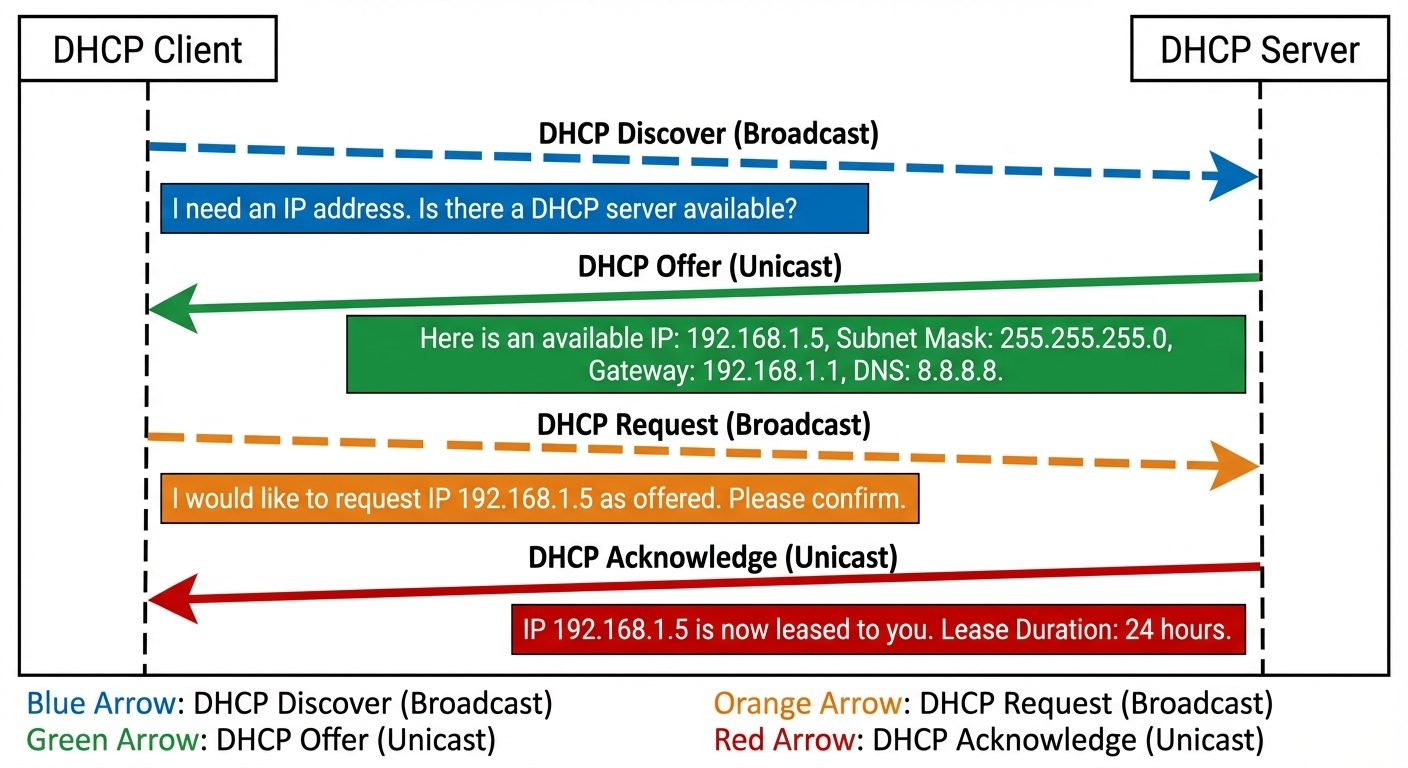
DHCP (Dynamic Host Configuration Protocol)
Automates the assignment of IP addresses to network devices.
- DORA Process: The 4-step handshake used to assign IPs.
- Discover: Client broadcasts to find a DHCP server.
- Offer: Server offers an available IP.
- Request: Client requests to lease the offered IP.
- Acknowledge: Server finalizes the lease.
- Scope: A range of valid IP addresses available for lease.
- Reservation: Ensuring a specific MAC address always receives the same IP address (useful for printers/servers).
DNS (Domain Name System)
Translates human-readable domain names (www.example.com) into IP addresses (192.0.2.1).
- Forward Lookup Zone: Maps Hostnames to IP addresses.
- Reverse Lookup Zone: Maps IP addresses to Hostnames.
- Record Types:
- A Record: IPv4 address mapping.
- AAAA Record: IPv6 address mapping.
- CNAME: Alias (canonical name) for another hostname.
- MX: Mail Exchange (for email delivery).
3. Server Administration: Access and Control
Access Methods
Administrators rarely work directly at the server console (local login). Remote management is standard.
- In-Band Management: Managing the server through the OS network connection.
- Windows Admin Center / Server Manager.
- PowerShell Remoting / WinRM.
- SSH/Terminal.
- Out-of-Band (OOB) Management: Managing the hardware directly, independent of the OS. Essential if the OS crashes.
- Technologies: IPMI (Intelligent Platform Management Interface), Dell iDRAC, HP iLO.
- Capabilities: Remote power on/off, BIOS configuration, mounting virtual ISOs.
Server Updates (Patch Management)
Regular updates are critical for security and stability.
- WSUS (Windows Server Update Services): Allows admins to approve/decline updates before they are deployed to servers.
- Best Practices:
- Never patch all servers at once.
- Test patches in a staging environment.
- Schedule maintenance windows to minimize downtime.
4. Service Level Agreements (SLAs) & Monitoring
Service Level Agreements (SLAs)
A contract between a service provider (IT department) and the customer (business unit) defining the level of service expected.
- Key Metrics:
- Uptime/Availability: Often expressed as "nines" (e.g., 99.999% availability).
- MTBF (Mean Time Between Failures): The average time a system runs before failing.
- MTTR (Mean Time To Repair): The average time required to fix a failed component.
- RPO (Recovery Point Objective): How much data loss is acceptable?
- RTO (Recovery Time Objective): How fast must the system be back online?
Monitoring Server Performance
Proactive monitoring prevents outages.
- Bottlenecks: The resource that limits the performance of the entire system.
- Key Counters to Monitor:
- CPU Usage: Sustained usage >80% indicates a processor bottleneck.
- Memory (RAM): High "Pages/sec" indicates reliance on the slower swap file (disk).
- Disk I/O: High "Queue Length" means requests are waiting to be written/read.
- Network Utilization: Bandwidth saturation or high error rates.
Capacity Planning
The process of determining future resource requirements.
- Baselining: Establishing known performance levels during normal operations to identify anomalies later.
- Trend Analysis: Using historical data to predict when resources (disk space, RAM) will run out.
5. Implementing Storage Solutions
Primary Storage Devices
- HDD (Hard Disk Drive): Uses spinning magnetic platters and read/write heads. Lower cost per GB, higher latency. Ideal for archival or bulk storage.
- SSD (Solid State Drive): Uses NAND Flash memory. No moving parts. High speed, low latency. Ideal for OS drives and high-performance databases.
- Interfaces:
- SATA: Consumer grade, slower.
- SAS (Serial Attached SCSI): Enterprise grade, full-duplex (read/write simultaneously).
- NVMe: Connects via PCIe bus for extreme speed.
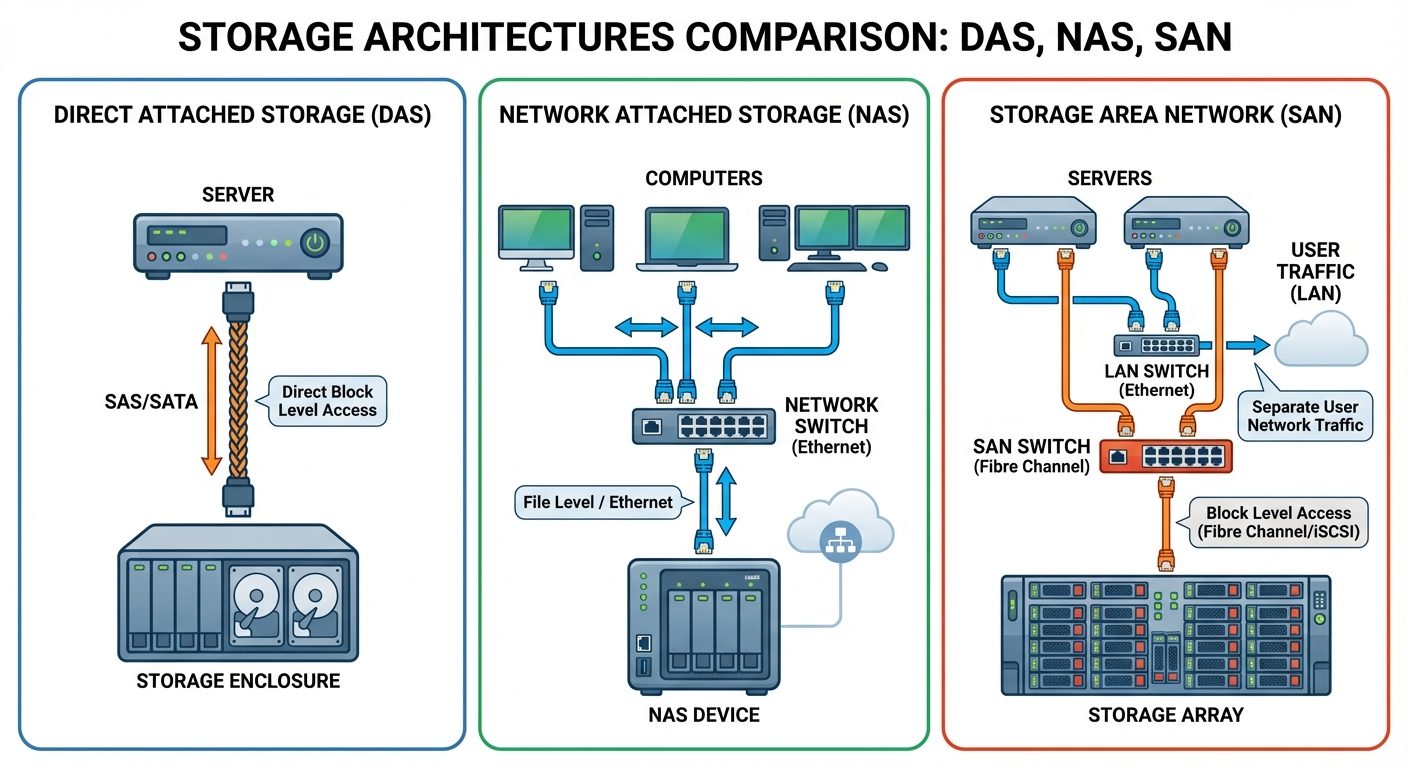
Storage Technologies: DAS, NAS, SAN
- DAS (Direct Attached Storage):
- Storage is physically connected to a single server (internal drives or external enclosure).
- Pros: Simple, low cost.
- Cons: Storage is not shared; if the server fails, storage is inaccessible.
- NAS (Network Attached Storage):
- File-level storage connected to the Ethernet LAN. Appears as shared folders (NFS, SMB/CIFS).
- Pros: easy to share data between clients.
- Cons: Performance depends on LAN traffic.
- SAN (Storage Area Network):
- Block-level storage. A dedicated high-speed network (Fibre Channel or iSCSI) connecting servers to storage arrays. The server sees the storage as a local disk, not a shared folder.
- Pros: High performance, high redundancy.
- Cons: Expensive, complex setup.
6. Configuring RAID (Redundant Array of Independent Disks)
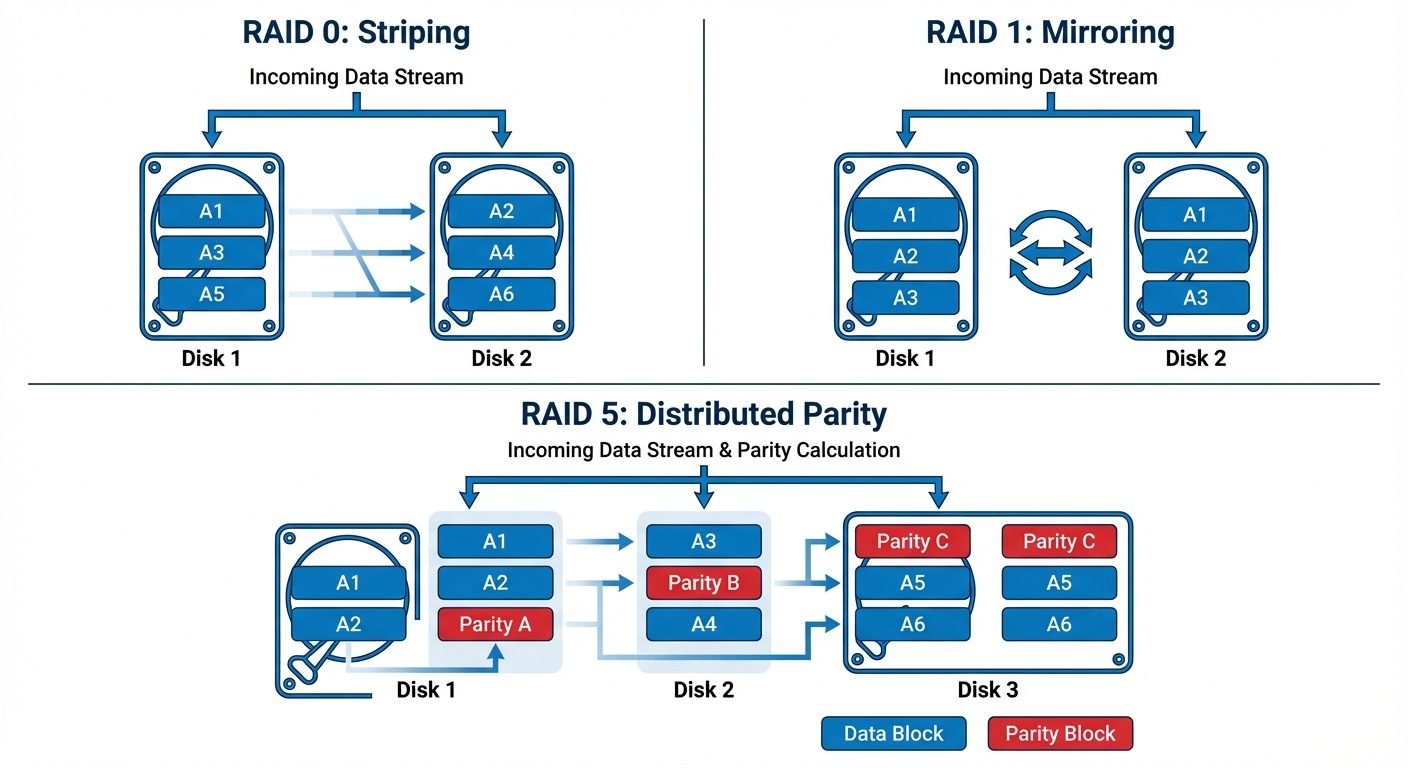
RAID combines multiple physical disk drives into a single logical unit to improve data redundancy, performance, or both.
Common RAID Levels
| RAID Level | Description | Min Drives | Pros | Cons |
|---|---|---|---|---|
| RAID 0 (Striping) | Data is split (striped) across drives. No redundancy. | 2 | Highest performance. | Critical point of failure (one drive fails = all data lost). |
| RAID 1 (Mirroring) | Data is duplicated on two drives. | 2 | High redundancy; fast reads. | High cost (50% storage efficiency). |
| RAID 5 (Striping with Parity) | Data and parity information are striped across all drives. | 3 | Good balance of speed and redundancy. Can withstand 1 drive failure. | Write penalties due to parity calculation. Slow rebuilds. |
| RAID 6 (Double Parity) | Similar to RAID 5 but with two parity blocks. | 4 | Can withstand 2 simultaneous drive failures. | Slower writes than RAID 5. |
| RAID 10 (1+0) | A stripe of mirrors. | 4 | Excellent performance and redundancy. | Very expensive (50% capacity). |
Software vs. Hardware RAID
- Hardware RAID: Managed by a dedicated controller card. Does not use the server's CPU. Better performance and reliability.
- Software RAID: Managed by the OS (e.g., Windows Storage Spaces). Cheaper but consumes server CPU cycles.
Did this save you a night before the exam?
LPU Notes is free, and it stays free. Ads cover part of the server bill. The rest comes out of a student's own pocket: the domain, the storage, and keeping the site up through the weeks everyone needs it at once.
The payment button didn't load. An ad blocker or a filtered network is the usual reason. to try again.
Nothing here is ever locked, and nothing unlocks. Chip in only if it was worth it. What it pays for →