Unit 1: Installing Windows Server, Configuring Network & Creating a Virtual Environment
1. Preparing an Installation Plan
Before inserting installation media, a system administrator must create a comprehensive deployment strategy. This minimizes downtime and ensures the server meets business needs.
Key Planning Considerations
- Workload Analysis: Determine the server's role (e.g., Domain Controller, File Server, Database Server). This dictates hardware requirements.
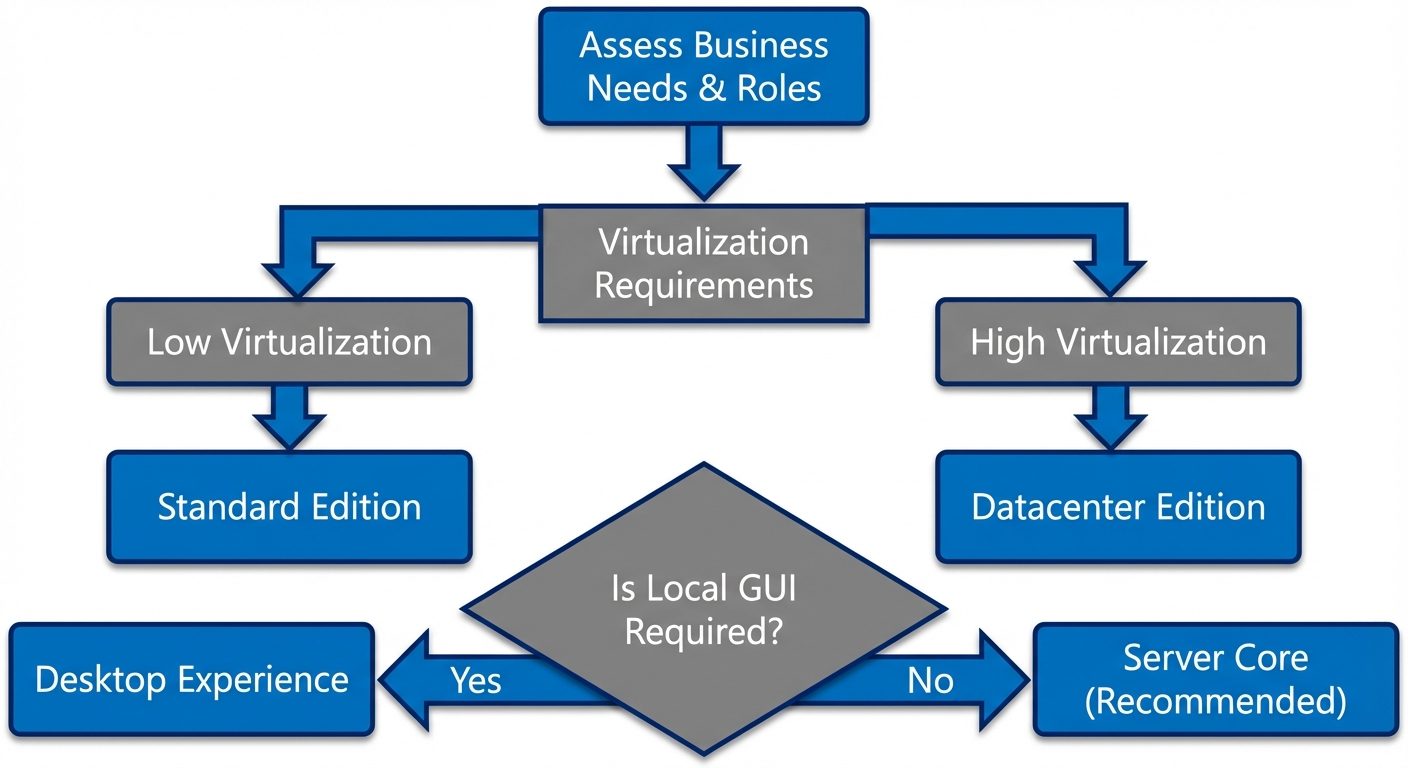
- Edition Selection:
- Windows Server Standard: Suitable for physical environments or low virtualization (allows 2 OSEs/Hyper-V containers).
- Windows Server Datacenter: Ideal for highly virtualized datacenters and cloud environments (unlimited OSEs/Hyper-V containers).
- Windows Server Essentials: For small businesses (limited to 25 users/50 devices).
- Installation Options:
- Server Core: The recommended default. No GUI, smaller footprint, reduced attack surface, managed remotely or via PowerShell.
- Server with Desktop Experience: Full GUI (looks like Windows 10/11). Required for apps that depend on a GUI or for admins uncomfortable with CLI.
- Licensing: Determine the number of Client Access Licenses (CALs) required (User CALs vs. Device CALs).
2. Preparing and Setting Up Server Hardware
Hardware preparation involves both physical handling and firmware configuration before the OS deployment.
Physical Preparation
- Rack Mounting: Secure the server rails into the 19-inch rack. Ensure proper airflow (Cold Aisle/Hot Aisle).
- Power Redundancy: Connect dual power supply units (PSUs) to separate Power Distribution Units (PDUs) or UPS circuits to prevent failure if one circuit trips.
Firmware and RAID Configuration
Before installing the OS, the storage subsystem must be configured.
- BIOS/UEFI Settings:
- Enable Intel VT-x or AMD-V (essential for virtualization).
- Set the Boot Order (USB/DVD/PXE).
- Enable Secure Boot (protects against bootkit malware).
- RAID Implementation (Redundant Array of Independent Disks):
- RAID 0 (Striping): Performance only, no redundancy. (Not recommended for servers).
- RAID 1 (Mirroring): 50% capacity, high redundancy. (Good for OS drives).
- RAID 5 (Striping with Parity): Good balance of speed and redundancy. Requires minimum 3 drives.
- RAID 10 (Stripe of Mirrors): High performance and redundancy. Expensive (50% overhead).
3. Installing the Operating System
Installation Methods
- Clean Install: Installing on a blank hard drive or overwriting existing data.
- In-Place Upgrade: Upgrading an older OS (e.g., Server 2019 to 2022) while keeping settings/apps.
- Migration: Moving roles/data from an old server to a fresh install on a new server (Clean Install + Migration Tools).
The Installation Process (Step-by-Step)
- Boot Media: Boot from USB, ISO (virtual media), or PXE (Network Boot).
- Language/Region: Select appropriate localization.
- Edition Selection: Choose Standard or Datacenter and Core or Desktop Experience.
- License Terms: Accept EULA.
- Installation Type: Select "Custom: Install Windows only (advanced)" for a clean install.
- Partitioning:
- UEFI Systems: Use GPT (GUID Partition Table). Supports drives >2TB and unlimited primary partitions.
- Legacy BIOS: Use MBR (Master Boot Record). Limited to 2TB.
- Finalize: The system copies files, reboots, and prompts for the Administrator password.
4. Managing Network Cabling & Configuring NICs
Network Cabling Standards
- Twisted Pair (Copper):
- Cat5e: Up to 1 Gbps (100 meters).
- Cat6/6a: Up to 10 Gbps (Cat6 limited distance, Cat6a full 100 meters).
- Fiber Optic:
- Multi-mode (MMF): Short distances within a datacenter (SR transceivers).
- Single-mode (SMF): Long distances between buildings (LR transceivers).
Configuring Network Interface Cards (NICs)
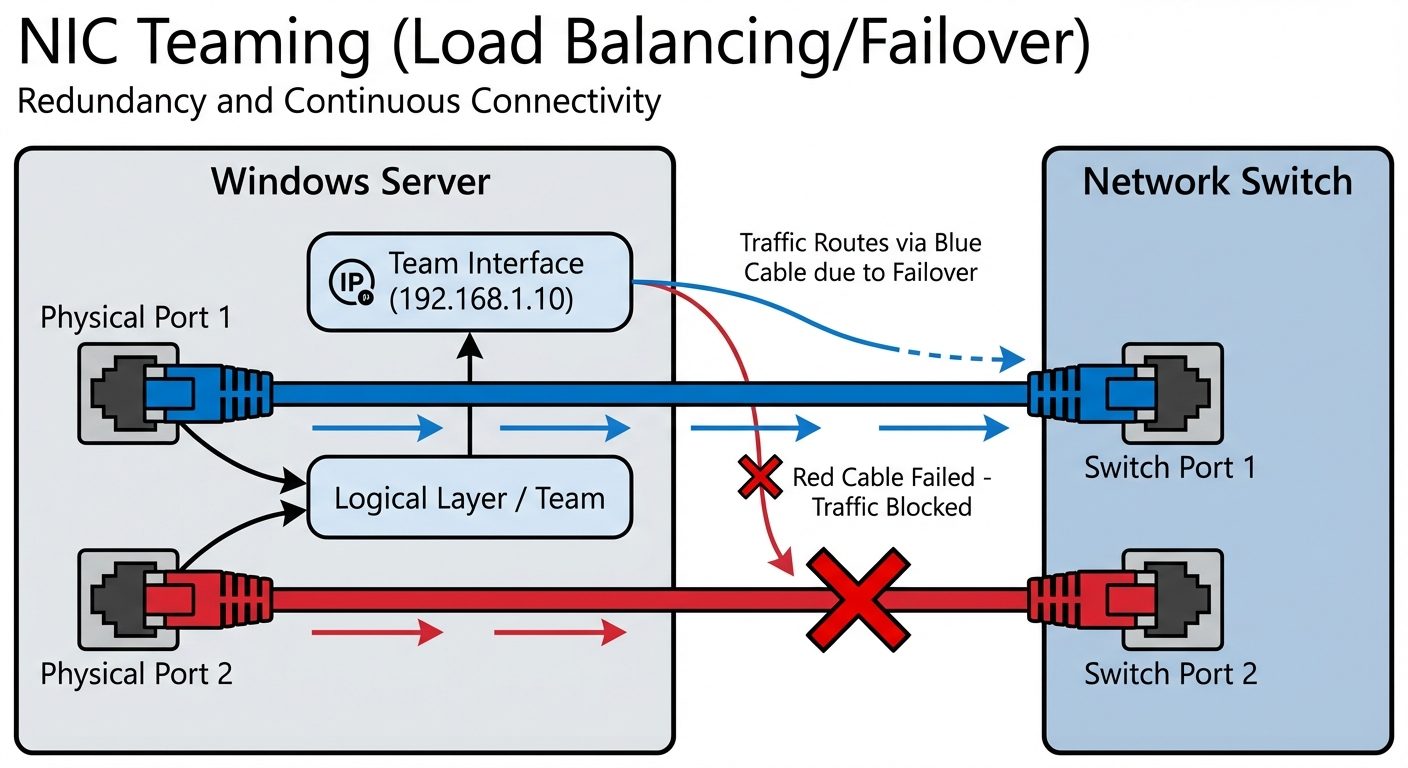
Modern servers often use NIC Teaming (LBFO - Load Balancing and Failover) to combine multiple physical ports into one logical interface.
Teaming Modes:
- Switch Independent: The switch is unaware of the team. Good for redundancy without switch configuration.
- Static Teaming (IEEE 802.3ad): Requires configuration on the switch and server.
- LACP (Link Aggregation Control Protocol): Dynamic negotiation between switch and server.
5. Implementing IP Addressing and Infrastructure Services
IP Configuration
Servers require Static IP addresses to ensure they are reliably reachable by clients.
- IPv4: 32-bit address (e.g., 192.168.10.5). Requires Subnet Mask and Default Gateway.
- IPv6: 128-bit hexadecimal address. Essential for modern infrastructure scalability.
PowerShell Command to Set Static IP:
New-NetIPAddress -InterfaceIndex 12 -IPAddress 192.168.1.10 -PrefixLength 24 -DefaultGateway 192.168.1.1
Set-DnsClientServerAddress -InterfaceIndex 12 -ServerAddresses ("192.168.1.5","8.8.8.8")
Infrastructure Services
After basic network connectivity, roles must be installed via Server Manager or PowerShell.
- DNS (Domain Name System): Resolves hostnames to IP addresses. Critical for Active Directory.
- DHCP (Dynamic Host Configuration Protocol): Automatically assigns IP addresses to client devices (workstations, phones, printers) so manual configuration isn't needed for every device.
6. Creating Virtual Servers (Hyper-V)
Hyper-V is a Type 1 (Bare Metal) Hypervisor built into Windows Server.
Virtual Machine Generations
- Generation 1: Supports 32-bit/64-bit OS, uses BIOS-based firmware, emulates legacy hardware (IDE controllers).
- Generation 2: Supports 64-bit only, uses UEFI firmware, supports Secure Boot, boots from SCSI (virtual) hardware. Recommended for all modern Windows/Linux installs.
Virtual Hard Disks
- VHD: Older format, limit of 2TB.
- VHDX: Newer format, limit of 64TB, power failure resilience.
- Fixed Size: Allocates all space immediately (Better performance).
- Dynamically Expanding: Grows as data is written (Saves space).
Creating a VM (PowerShell Example)
New-VM -Name "WebSvr01" -MemoryStartupBytes 4GB -Generation 2 -NewVHDPath "C:\VMs\WebSvr01.vhdx" -NewVHDSizeBytes 60GB7. Creating Virtual Switches
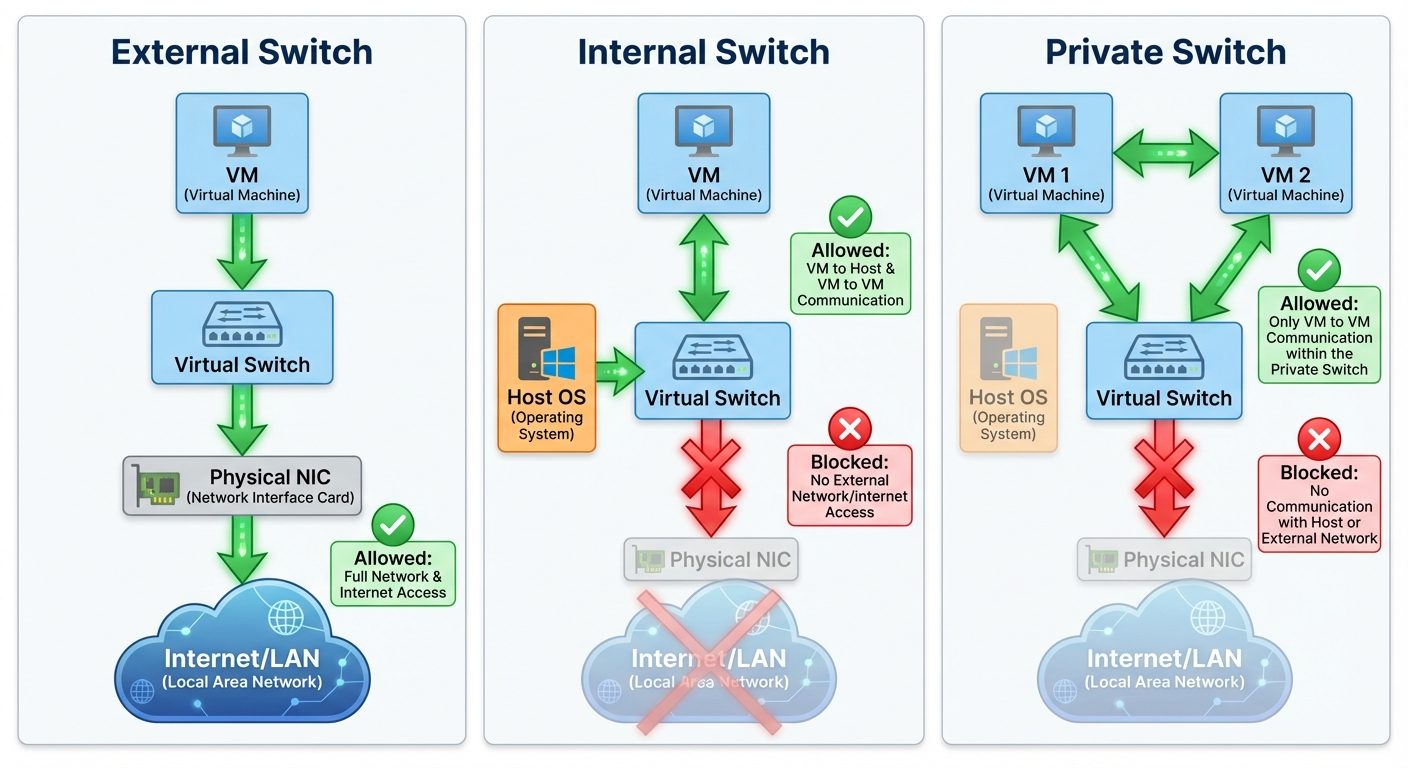
A Virtual Switch is software that creates a link between Virtual Machines and the physical network or between VMs themselves.
Types of Virtual Switches
- External Virtual Switch:
- Binds to a physical NIC.
- Allows VMs to communicate with the physical network (LAN/Internet) and the host.
- Used for production servers accessible by clients.
- Internal Virtual Switch:
- Does NOT bind to a physical NIC.
- Allows communication between VMs and the Host OS only.
- No internet access for the VMs (unless routed through the host).
- Used for testing environments where the admin needs access to the VMs.
- Private Virtual Switch:
- Does NOT bind to a physical NIC.
- Allows communication only between VMs connected to this switch.
- The Host OS cannot see these VMs.
- Used for isolated clustering or security sandboxing.
Did this save you a night before the exam?
LPU Notes is free, and it stays free. Ads cover part of the server bill. The rest comes out of a student's own pocket: the domain, the storage, and keeping the site up through the weeks everyone needs it at once.
The payment button didn't load. An ad blocker or a filtered network is the usual reason. to try again.
Nothing here is ever locked, and nothing unlocks. Chip in only if it was worth it. What it pays for →