Unit 2: Pandas for Data Handling
Pandas is an open-source Python library providing high-performance, easy-to-use data structures and data analysis tools. It is built on top of NumPy and is essential for data cleaning, manipulation, and analysis in Machine Learning.
1. Series and DataFrame
Pandas deals primarily with two data structures: Series (1-dimensional) and DataFrame (2-dimensional).
1.1 Pandas Series
A Series is a one-dimensional labeled array capable of holding data of any type (integer, string, float, python objects, etc.). The axis labels are collectively called the index.
Syntax:
import pandas as pd
s = pd.Series(data, index=index)
Example:
import pandas as pd
import numpy as np

# Creating a Series from a list
data = [10, 20, 30, 40]
labels = ['a', 'b', 'c', 'd']
series = pd.Series(data, index=labels)

print(series)
# Output:
# a    10
# b    20
# c    30
# d    40
# dtype: int64
1.2 Pandas DataFrame
A DataFrame is a two-dimensional data structure, i.e., data is aligned in a tabular fashion in rows and columns. It is mutable, size-mutable, and can handle heterogeneous data types.
Key Features:
- Potentially columns are of different types.
- Size – Mutable.
- Labeled axes (rows and columns).
- Can perform arithmetic operations on rows and columns.
Example:
# Creating a DataFrame from a Dictionary
data = {
    'Name': ['Alice', 'Bob', 'Charlie'],
    'Age': [25, 30, 35],
    'City': ['New York', 'Paris', 'London']
}

df = pd.DataFrame(data)
print(df)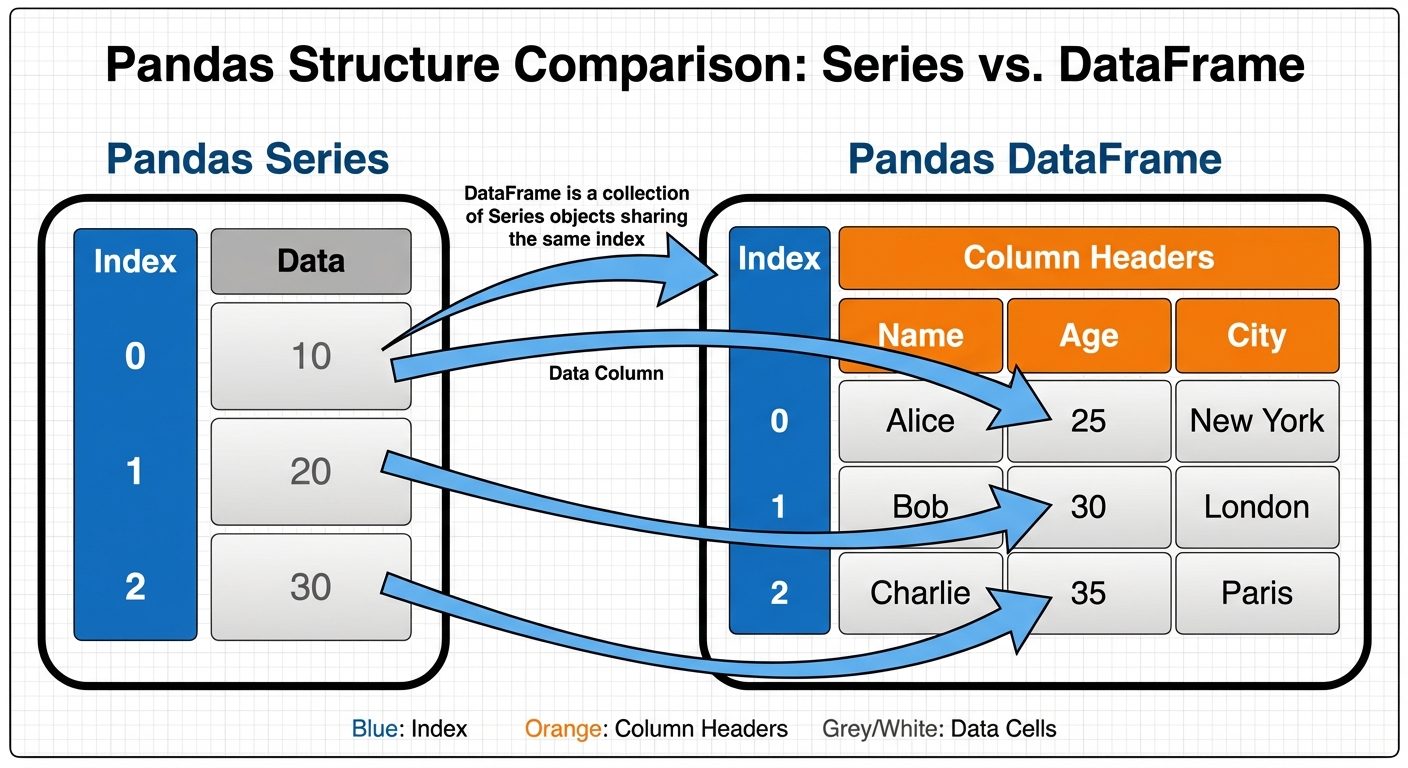
2. Reading and Writing CSV Files
CSV (Comma Separated Values) is the most common file format for storing data.
2.1 Reading CSV
The read_csv() function is used to load a CSV file into a DataFrame.
# Basic reading
df = pd.read_csv('data.csv')

# Reading with specific requirements
df = pd.read_csv('data.csv',
                 index_col=0,       # Use first column as index
                 header=0,          # Row number to use as column names
                 usecols=['Name', 'Age']) # Load specific columns
2.2 Writing CSV
The to_csv() function writes a DataFrame to a CSV file.
# Write to CSV
df.to_csv('output.csv', index=False) # index=False prevents writing row numbers
3. Inspecting Datasets
Before analyzing data, it is crucial to understand its structure and content.
| Method | Description |
|---|---|
df.head(n) |
Returns the first n rows (default is 5). |
df.tail(n) |
Returns the last n rows (default is 5). |
df.info() |
Prints a summary of the DataFrame (index dtype, columns, non-null values, memory usage). |
df.describe() |
Generates descriptive statistics (mean, std, min, max, quartiles) for numeric columns. |
df.shape |
Returns a tuple representing the dimensionality (rows, columns). |
df.columns |
Returns the column labels. |
df.dtypes |
Returns the data type of each column. |
4. Selecting and Filtering Data
Pandas provides specific accessors, loc and iloc, for efficient data selection.
4.1 Selection: loc vs iloc
loc(Label-based): Selects data based on the names of rows and columns.iloc(Integer-based): Selects data based on the integer position (index) of rows and columns (0-based).
Example:
# Select the row with index label 'a' and column 'Age'
val = df.loc['a', 'Age']
# Select the first row (position 0) and the second column (position 1)
val = df.iloc[0, 1]
# Slicing
subset_loc = df.loc[:, 'Name':'Age'] # All rows, columns from Name to Age (inclusive)
subset_iloc = df.iloc[0:5, 0:2] # First 5 rows, first 2 columns (exclusive of end)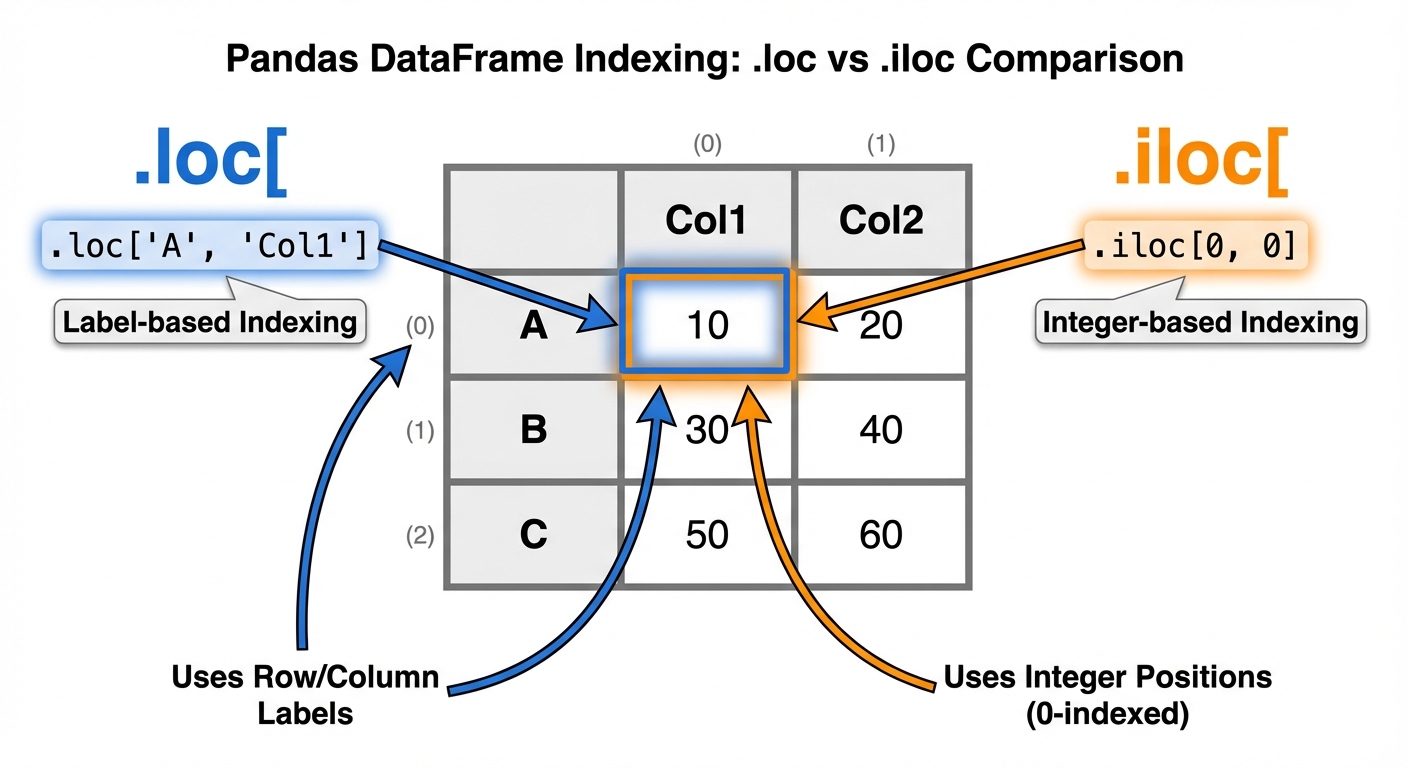 AI-generated image — may contain inaccuracies (Label Based)" with an arrow pointing to a selection highlighting the row "B" and column "Col1" explicitly using their names. On the right side, label ".iloc[] (Position Based)" with an arrow pointing to the same cell but referring to it as coordinates [1, 0]. Use color coding: Red highlights for Label-based selection references, and Blue highlights for Integer-position based selection references. Background should be clean white or light grey.]
4.2 Filtering (Boolean Indexing)
Filtering allows you to select rows that satisfy a specific condition.
# Filter rows where Age is greater than 30
adults = df[df['Age'] > 30]

# Multiple conditions (Use & for AND, | for OR)
# Note: Parentheses are mandatory around conditions
target_group = df[(df['Age'] > 25) & (df['City'] == 'London')]
5. Data Visualization using Matplotlib
Matplotlib is a low-level graph plotting library in Python that serves as a visualization utility.
Importing:
import matplotlib.pyplot as plt5.1 Line Plot
Used to visualize trends over time or sequential data.
x = [1, 2, 3, 4, 5]
y = [2, 4, 6, 8, 10]

plt.plot(x, y, color='green', linestyle='--', marker='o')
plt.title("Line Plot Example")
plt.xlabel("X Axis")
plt.ylabel("Y Axis")
plt.show()
5.2 Bar Plot
Used to compare categorical data.
categories = ['A', 'B', 'C']
values = [10, 20, 15]

plt.bar(categories, values, color='skyblue')
plt.title("Bar Plot Example")
plt.show()
5.3 Histogram
Used to visualize the frequency distribution of a continuous variable.
ages = [22, 55, 62, 45, 21, 22, 34, 42, 42, 4, 99, 102]
bins = [0, 20, 40, 60, 80, 100]

plt.hist(ages, bins, histtype='bar', rwidth=0.8)
plt.title("Age Distribution")
plt.show()
5.4 Scatter Plot
Used to observe relationships/correlations between two numeric variables.
x = [5, 7, 8, 7, 2, 17, 2, 9]
y = [99, 86, 87, 88, 111, 86, 103, 87]

plt.scatter(x, y, c='red')
plt.title("Scatter Plot")
plt.show()
5.5 Pie Chart
Used to display proportions of a whole.
labels = ['Python', 'Java', 'C++']
sizes = [215, 130, 245]

plt.pie(sizes, labels=labels, autopct='%1.1f%%', startangle=140)
plt.axis('equal') # Ensures pie is drawn as a circle
plt.show()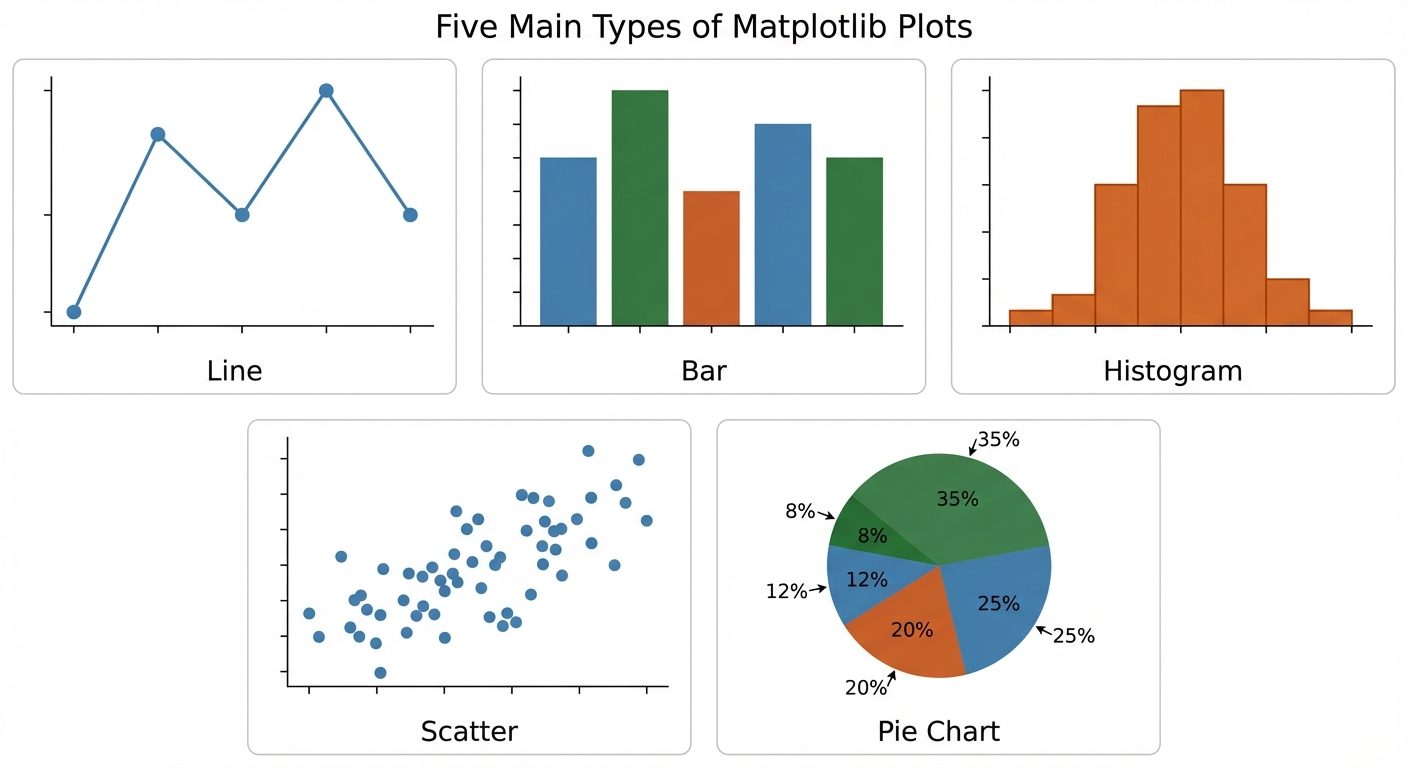
6. Customizing Plots
Customization improves the readability and aesthetics of the plots.
- Titles and Labels:
PYTHONplt.title("Global Sales Data") plt.xlabel("Year") plt.ylabel("Sales ($)") - Legends: Used to identify multiple datasets on the same plot.
PYTHONplt.plot(x, y1, label='Company A') plt.plot(x, y2, label='Company B') plt.legend(loc='upper right') - Grid:
PYTHONplt.grid(True, linestyle='--', alpha=0.6) - Colors and Styles:
- Colors: 'b' (blue), 'g' (green), 'r' (red), 'k' (black).
- Markers: 'o' (circle), 's' (square), '^' (triangle).
- Line Styles: '-' (solid), '--' (dashed), ':' (dotted).
7. Subplots
The subplot() function allows you to draw multiple plots in a single figure (canvas).
Syntax: plt.subplot(nrows, ncols, index)
Example: Creating a 1x2 grid (1 row, 2 columns).
# Plot 1
plt.subplot(1, 2, 1) # (1 row, 2 cols, index 1)
plt.plot(x, y)
plt.title("First Plot")

# Plot 2
plt.subplot(1, 2, 2) # (1 row, 2 cols, index 2)
plt.scatter(x, y)
plt.title("Second Plot")

plt.suptitle("Multiple Plots Example") # Main title for the whole figure
plt.show()
Alternatively, plt.subplots() (plural) creates the figure and axes objects at once:
fig, axes = plt.subplots(nrows=2, ncols=2)
axes[0,0].plot(x, y) # Top left
axes[0,1].bar(x, y)  # Top right
axes[1,0].scatter(x, y) # Bottom left
axes[1,1].hist(y)    # Bottom right
plt.show()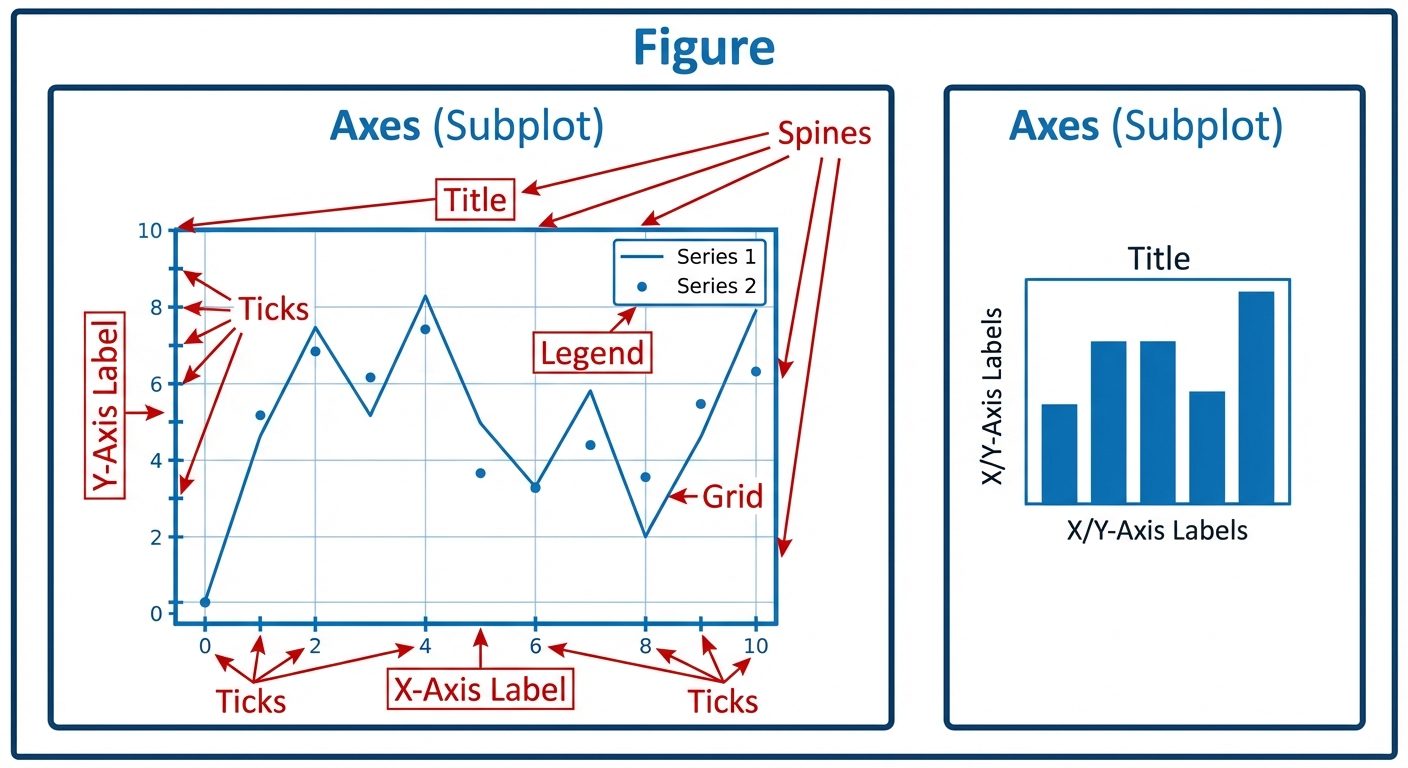
Did this save you a night before the exam?
LPU Notes is free, and it stays free. Ads cover part of the server bill. The rest comes out of a student's own pocket: the domain, the storage, and keeping the site up through the weeks everyone needs it at once.
The payment button didn't load. An ad blocker or a filtered network is the usual reason. to try again.
Nothing here is ever locked, and nothing unlocks. Chip in only if it was worth it. What it pays for →