Unit 5: Configuring Network Security
1. Network Firewall Configuration
Firewalls are the first line of defense in network security, controlling incoming and outgoing network traffic based on predetermined security rules. In Linux, the kernel's packet filtering framework is primarily handled by Netfilter, which is manipulated by user-space tools.
Key Tools and Architectures
A. Firewalld (Red Hat/CentOS/Fedora)
Firewalld uses "zones" to define trust levels for network connections.
-
Zones:
public: For use in public areas; limited incoming connections.dmz: For computers in your demilitarized zone that are publicly-accessible with limited access to the internal network.trusted: All network connections are accepted.
-
Key Commands:
BASH# Check status systemctl status firewalld # List active zones and rules firewall-cmd --list-all # Add a service temporarily (runtime configuration) firewall-cmd --add-service=https # Add a service permanently (persists after reboot) firewall-cmd --permanent --add-service=https # Reload to apply permanent changes firewall-cmd --reload
B. UFW - Uncomplicated Firewall (Ubuntu/Debian)
A simplified interface for iptables designed for ease of use.
- Key Commands:
BASH# Enable the firewall ufw enable # Allow specific ports or services ufw allow 22/tcp ufw allow ssh # Deny traffic ufw deny 80 # Check status and numbered rules ufw status numbered
C. IPtables/NFTables
The traditional (iptables) and modern (nftables) backend tools for packet filtering. They work using Tables (filter, nat), Chains (INPUT, OUTPUT, FORWARD), and Rules.
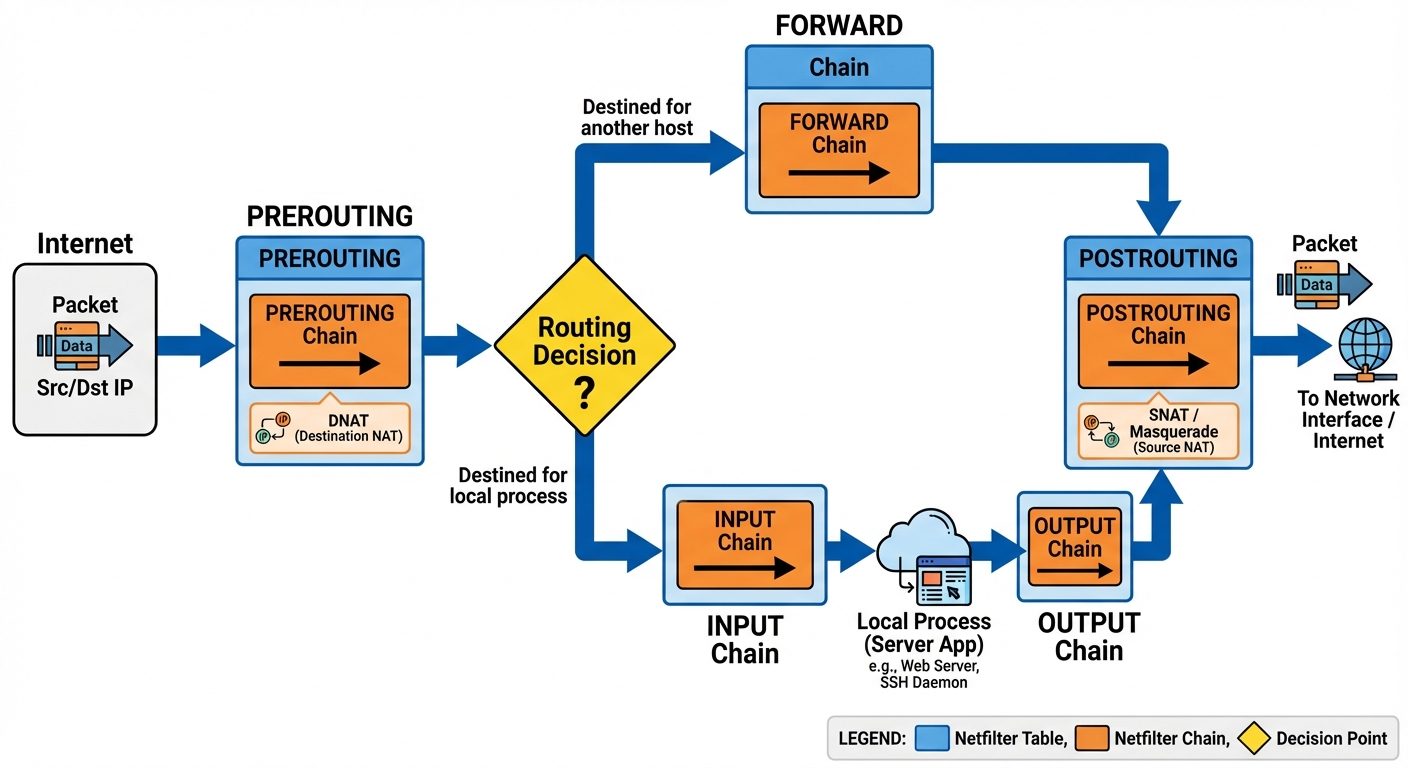
2. Monitoring Network Traffic
System administrators must monitor traffic to detect anomalies, unauthorized access, or performance bottlenecks.
Essential Tools
- tcpdump: A command-line packet analyzer.
- Usage:
tcpdump -i eth0 port 80(Capture traffic on interface eth0 for port 80). - Analysis: Useful for inspecting TCP headers (SYN, ACK, FIN flags) to debug connection issues.
- Usage:
- Wireshark: A GUI-based network protocol analyzer used for deep packet inspection.
- ss (Socket Statistics): Replaces
netstat. Used to investigate open ports and socket states.
BASH# List all listening TCP ports with process names ss -tunlp - nmap: Network exploration tool and security scanner (used for auditing open ports).
3. Hardening a Linux System
System hardening involves reducing the "attack surface" of the server.
Key Hardening Steps
- Keep Systems Updated:
- Regularly apply security patches:
apt update && apt upgradeordnf update.
- Regularly apply security patches:
- Minimize Installed Packages:
- Remove compilers (gcc, make) on production servers to prevent attackers from building malware locally.
- Secure SSH Configuration (
/etc/ssh/sshd_config):- Disable Root Login:
PermitRootLogin no - Disable Password Auth (enforce keys):
PasswordAuthentication no - Change Default Port:
Port 2222 - Use Protocol 2:
Protocol 2
- Disable Root Login:
- Disable Unused Services:
- Identify services:
systemctl list-unit-files --type=service - Disable:
systemctl disable --now <service_name>
- Identify services:
- Configure File Permissions:
- Ensure critical files have strict ownership (root:root) and permissions (600 or 644).
4. Managing Certificates and Authentication
Public Key Infrastructure (PKI)
PKI governs the issuance of digital certificates to protect sensitive data and verify identity.
- Components:
- CA (Certificate Authority): Trusted entity that signs certificates.
- CSR (Certificate Signing Request): Generated by the applicant, contains the public key and identity info.
- Private Key: Kept secret by the server.
- Public Key: Distributed via the certificate.
OpenSSL Management
Creating a self-signed certificate for testing:
# 1. Generate Private Key
openssl genrsa -out server.key 2048

# 2. Generate CSR
openssl req -new -key server.key -out server.csr

# 3. Generate Self-Signed Certificate (valid for 365 days)
openssl x509 -req -days 365 -in server.csr -signkey server.key -out server.crt
Understanding Authentication (PAM)
Pluggable Authentication Modules (PAM) allow Linux systems to integrate multiple low-level authentication schemes into a high-level API.
- Config location:
/etc/pam.d/ - Modules:
pam_unix.so(standard password),pam_google_authenticator.so(MFA),pam_ldap.so(Directory services).
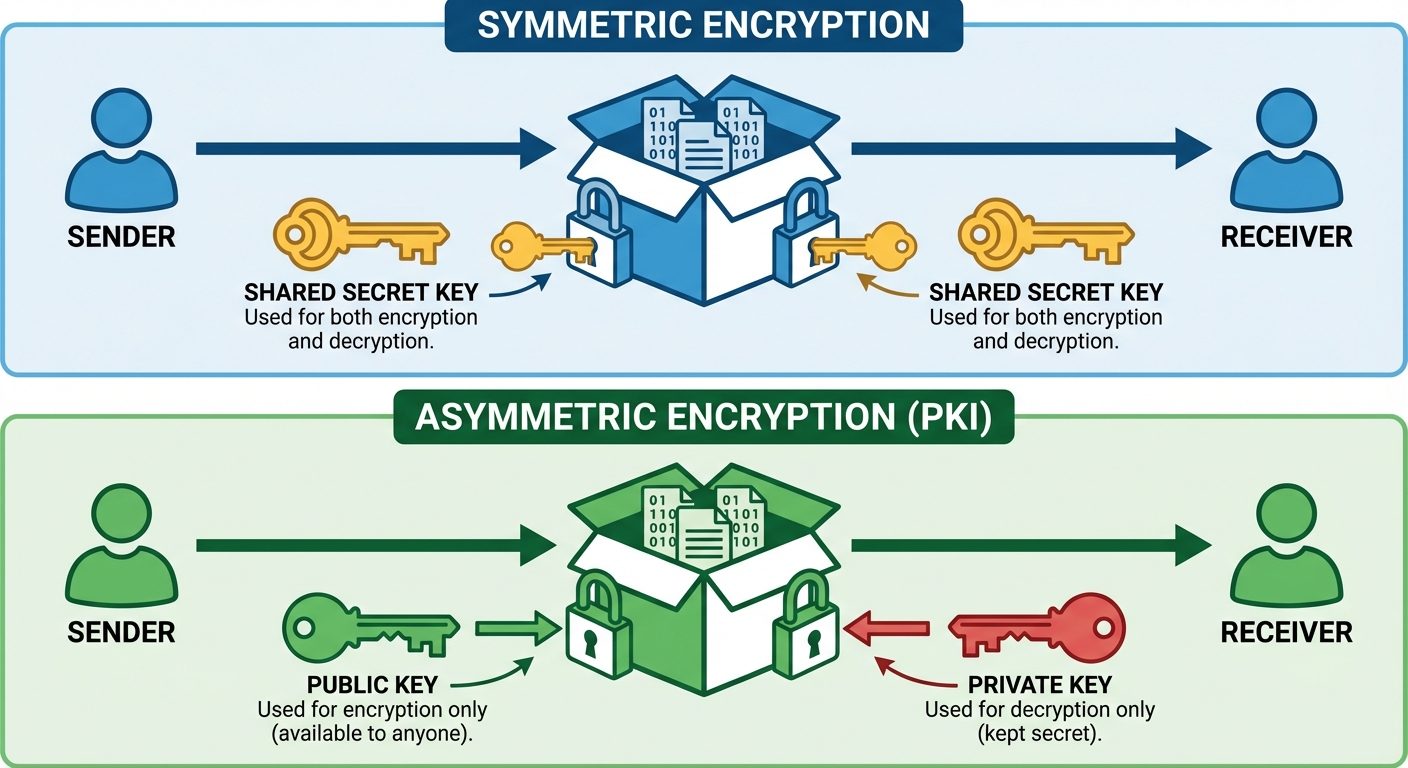
5. Mandatory Access Control (MAC): SELinux and AppArmor
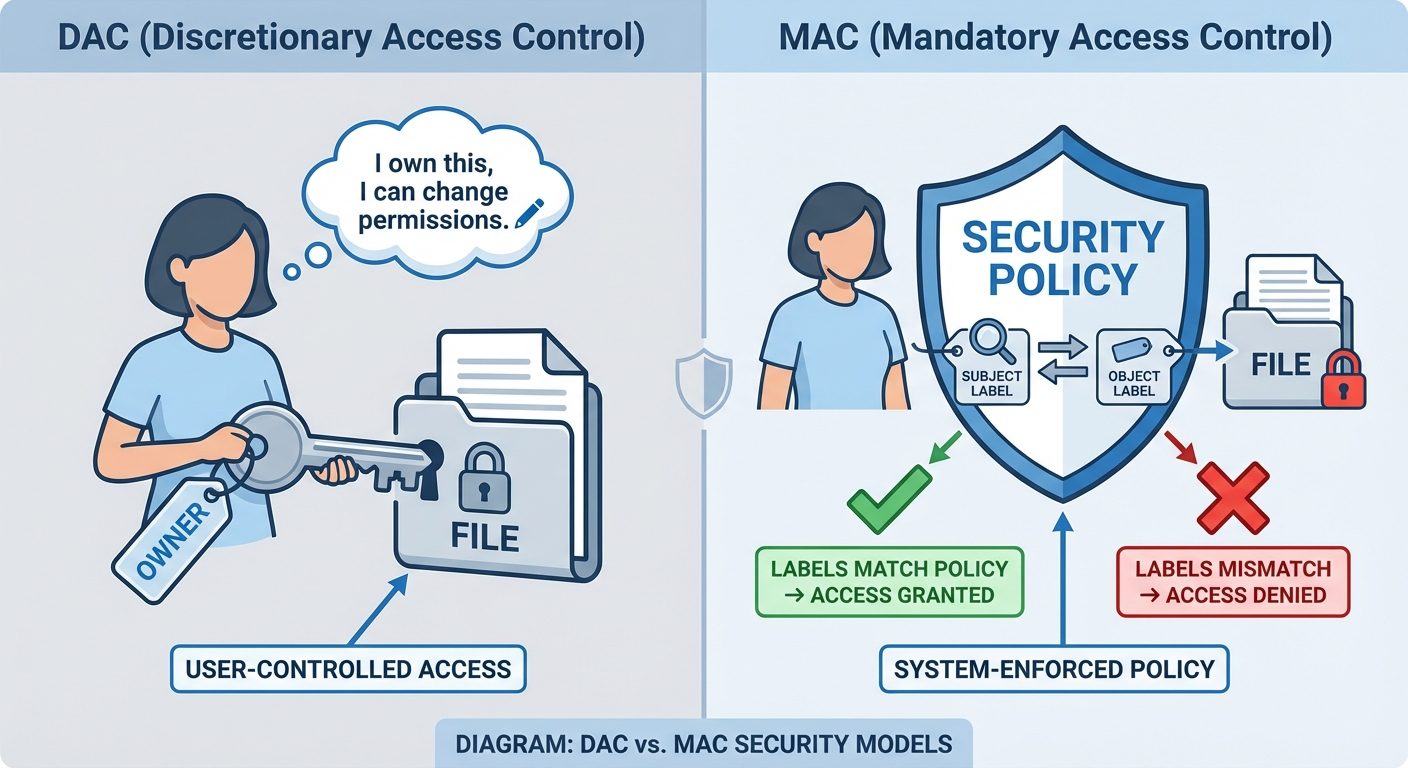
Standard Linux permissions (User/Group/Other) are known as Discretionary Access Control (DAC). MAC provides an additional layer of security where the system (kernel) enforces policies that users cannot override.
SELinux (Security Enhanced Linux)
Used primarily in RHEL/CentOS systems. It uses a labeling system (Contexts).
- Modes:
Enforcing: Policy is enforced; violations are denied and logged.Permissive: Policy is not enforced; violations are only logged.Disabled: SELinux is off.
- Context Structure:
user:role:type:level(e.g.,system_u:object_r:httpd_sys_content_t:s0).- The Type is the most critical attribute for targeting rules.
- Management:
getenforce/setenforce: Check/Set mode.restorecon -Rv /var/www/html: Restore default contexts.getsebool -a: View boolean switches for features.
AppArmor
Used primarily in Ubuntu/SUSE. It restricts programs to a limited set of resources based on file paths.
- Profiles: Stored in
/etc/apparmor.d/. - Modes:
Enforce: Rules are applied.Complain: Violations are allowed but logged (for learning/debugging).
- Key Command:
aa-status(Check status of profiles).
6. Bash Scripting for Administration
Bash scripting automates repetitive system administration tasks, security audits, and backups.
A. Bash Scripting Basics
- Shebang: Every script starts with
#!/bin/bashto define the interpreter. - Permissions: Scripts must be executable:
chmod +x script.name. - Execution:
./script.name
B. Shell Script Elements
- Variables: Storage for data.
BASHNAME="Server01" echo "Configuring $NAME" - Arguments: Input passed to the script.
$1,$2: First and second arguments.$#: Total number of arguments.
- Command Substitution: Storing the output of a command.
BASHTODAY=$(date +%Y-%m-%d) - Exit Codes:
$?stores the status of the last command (0 = success, non-zero = error).
C. Implementing Logical Controls
Conditionals (If/Else)
Used to make decisions based on test conditions (e.g., file existence, string comparison).
#!/bin/bash
# Check if running as root
if [ "$EUID" -ne 0 ]; then
  echo "Please run as root"
  exit 1
else
  echo "Root access confirmed. Proceeding..."
fi
Loops (For/While)
Used to iterate over lists (files, users, servers).
#!/bin/bash
# Update multiple packages
PACKAGES="vim git ufw nginx"

for pkg in $PACKAGES; do
  echo "Installing $pkg..."
  apt install -y $pkg
done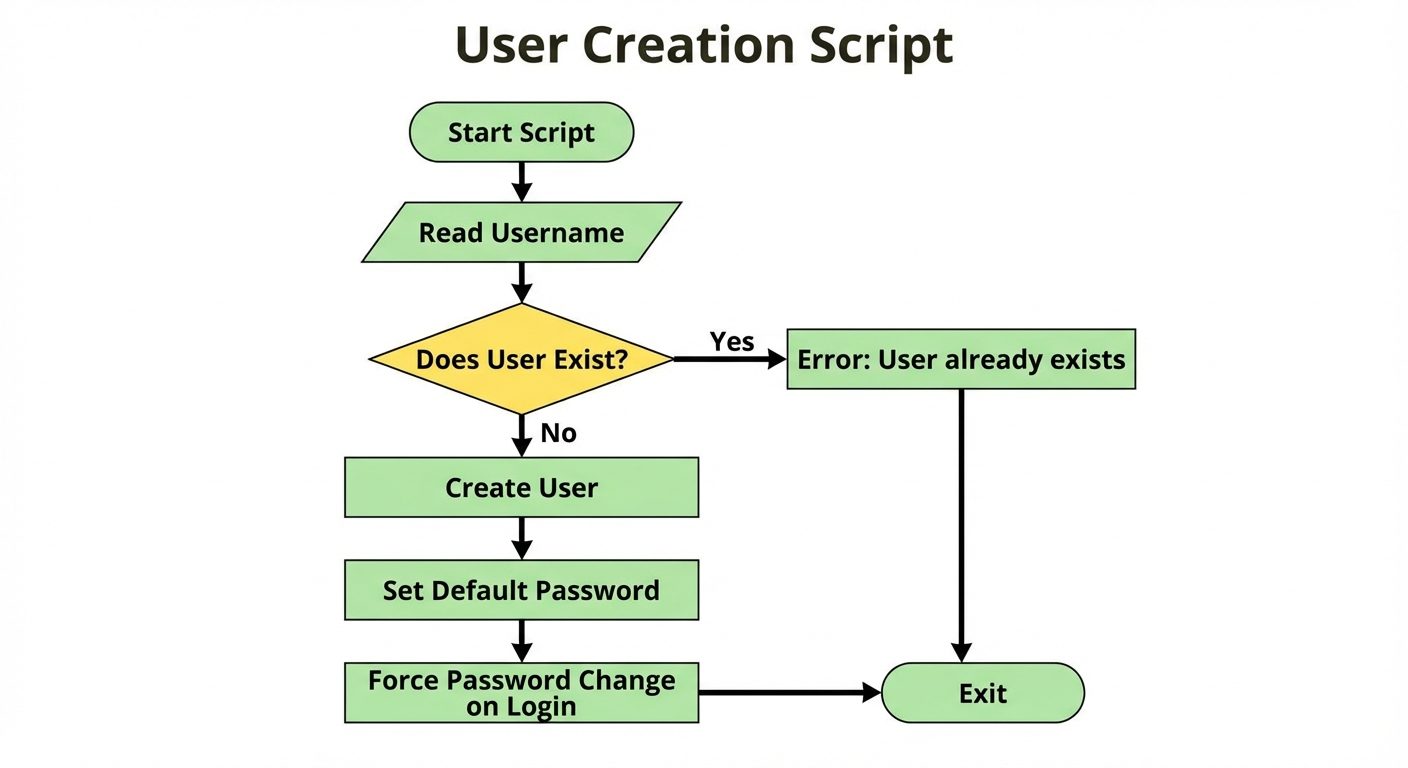
Did this save you a night before the exam?
LPU Notes is free, and it stays free. Ads cover part of the server bill. The rest comes out of a student's own pocket: the domain, the storage, and keeping the site up through the weeks everyone needs it at once.
The payment button didn't load. An ad blocker or a filtered network is the usual reason. to try again.
Nothing here is ever locked, and nothing unlocks. Chip in only if it was worth it. What it pays for →