Unit 3: Managing Software and Storage
Section 1: Software Management
1.1 Understand Software Management
Modern Linux distributions use Package Management Systems to handle software installation, removal, and updates. Unlike manual installation, package managers handle:
- Dependencies: Automatically installing libraries required by the main program.
- Integrity: Verifying digital signatures to ensure software hasn't been tampered with.
- Version Control: managing updates and allowing rollbacks.
- Centralization: Pulling software from trusted repositories.
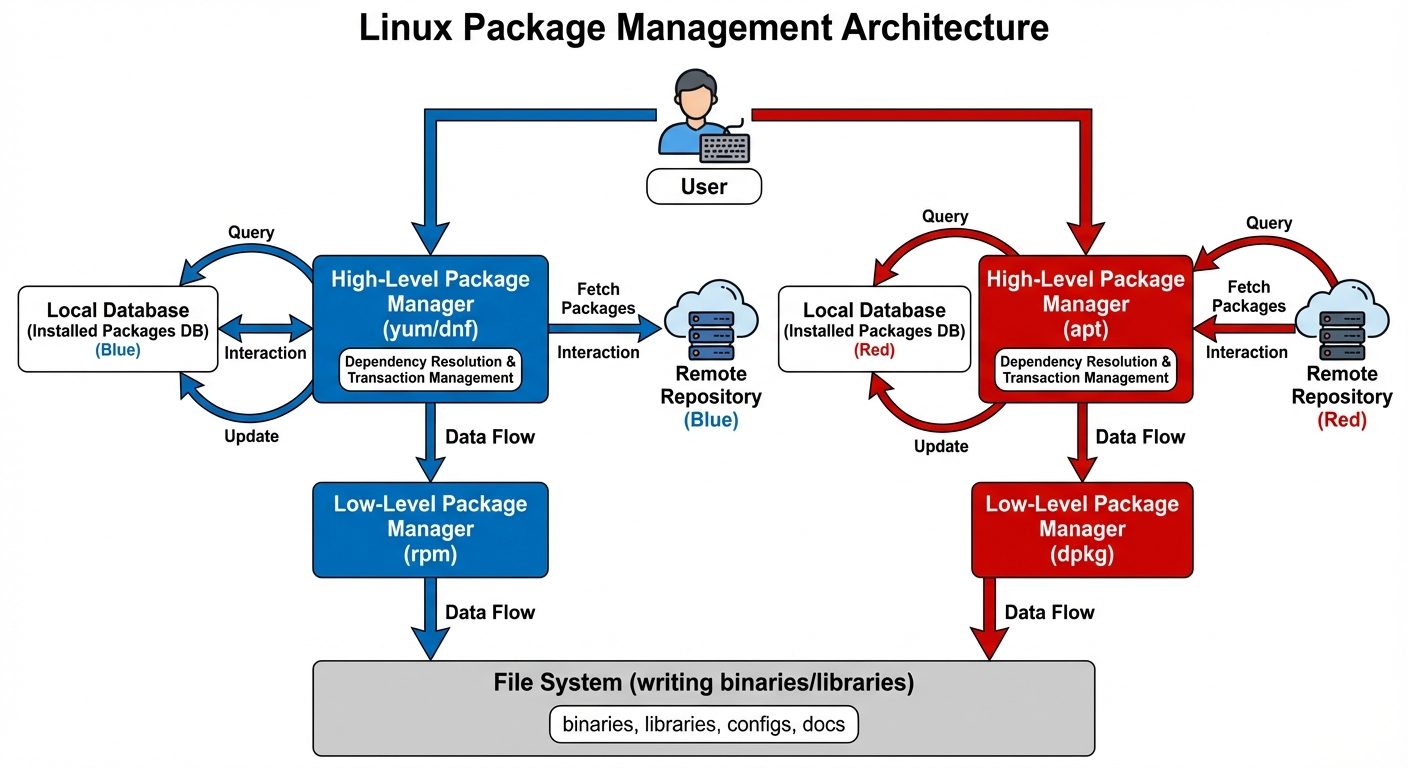
1.2 Manage RPM Software Packages and Repositories
Used by Red Hat Enterprise Linux (RHEL), CentOS, Fedora, and SUSE.
The RPM Database:
Stores information about installed packages. Located at /var/lib/rpm.
Low-Level Tool: rpm
Does not resolve dependencies. Useful for querying or installing specific standalone .rpm files.
- Install:
rpm -ivh package_name.rpm(i=install, v=verbose, h=hash marks). - Upgrade:
rpm -Uvh package_name.rpm(Installs if not present, upgrades if present). - Query:
rpm -qa(Query All installed),rpm -qi package_name(Info). - Remove:
rpm -e package_name. - Verify:
rpm -V package_name(Checks if files have changed since installation).
High-Level Tools: yum and dnf
dnf is the successor to yum. Both resolve dependencies automatically by checking repositories.
- Repositories: Configured in
/etc/yum.repos.d/*.repo. - Install:
dnf install package_name - Update:
dnf update(Updates all packages). - Search:
dnf search keyword. - List:
dnf list installed. - Groups:
dnf groupinstall "Development Tools".
1.3 Manage Debian-based Software Packages and Repositories
Used by Debian, Ubuntu, Linux Mint, and Kali.
Low-Level Tool: dpkg
Similar to rpm, it manages local .deb files but does not resolve dependencies.
- Install:
dpkg -i package_name.deb - Remove:
dpkg -r package_name(keeps config files) ordpkg -P package_name(Purge; removes config). - Status:
dpkg -l(List all). - Reconfigure:
dpkg-reconfigure package_name.
High-Level Tools: apt (and apt-get)
Retrieves packages from repositories defined in /etc/apt/sources.list and /etc/apt/sources.list.d/.
- Update Index:
apt update(Crucial first step: refreshes the local list of available package versions). - Upgrade System:
apt upgrade(Installs newer versions of installed packages). - Install:
apt install package_name. - Remove:
apt remove package_name. - Search:
apt search keyword.
1.4 Compile from Source Code
When software is not in a repository, or specific compile-time options are needed, admins must compile from source.
Prerequisites: Compiler (gcc), make, kernel headers (kernel-devel).
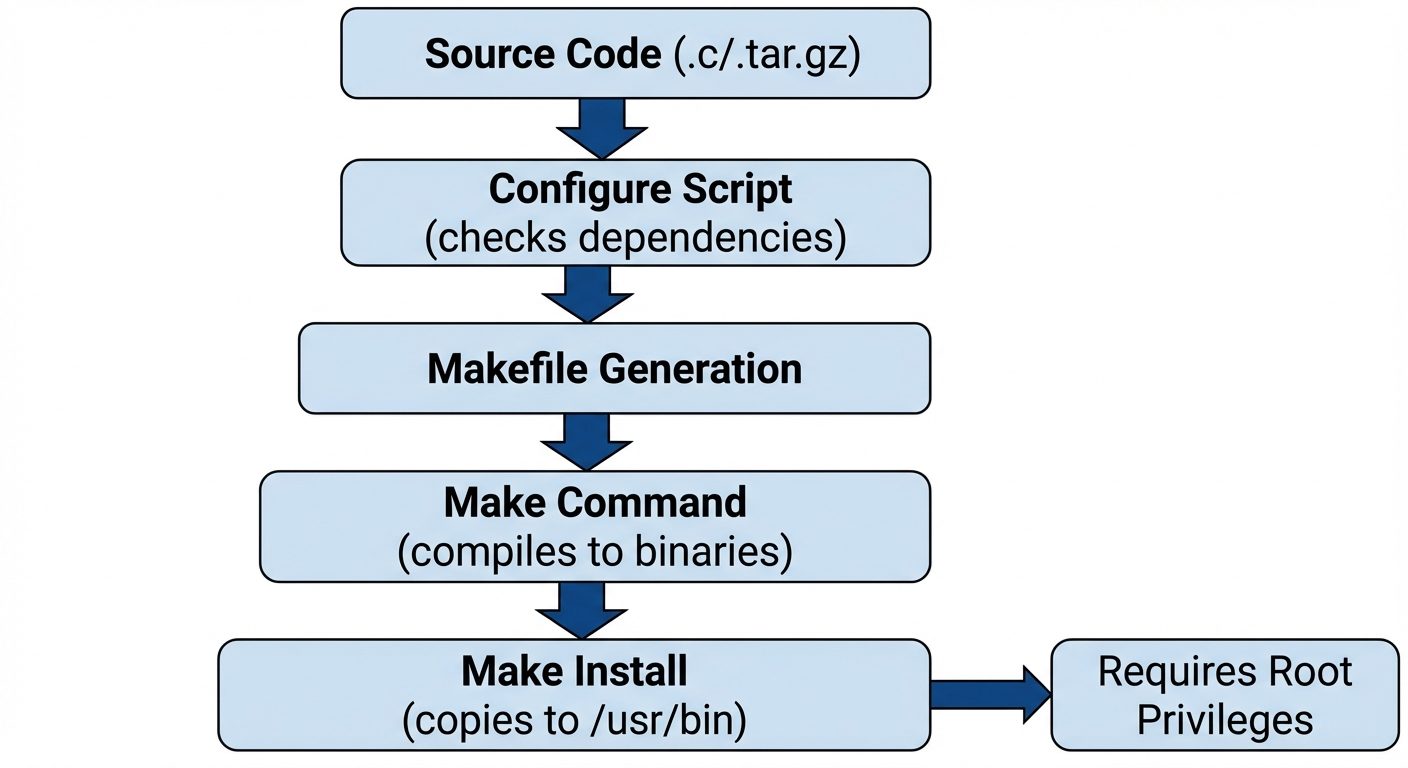
The Standard Workflow (The "Triad"):
- Extract: Unpack the tarball.
BASHtar -xzvf software-1.0.tar.gz cd software-1.0 - Configure: Checks system for dependencies and creates a Makefile.
BASH./configure - Make: Compiles the source code into binary executables using the instructions in the Makefile.
BASHmake - Install: Copies the binaries to system directories (usually
/usr/local/bin). Requires root.
BASHsudo make install
1.5 Acquire Software
Before management, software must be retrieved.
- wget: Non-interactive network downloader. Good for unstable connections (can resume).
wget -c http://example.com/file.iso(Continue download).
- curl: Tool to transfer data to/from a server. Supports many protocols (HTTP, FTP, SCP).
curl -O http://example.com/file.zip(Save with original filename).
- git: Cloning source code repositories.
git clone https://github.com/user/project.git.
1.6 Run Software in a Sandbox
Sandboxing isolates applications from the core operating system to improve security and stability.
- Universal Packages (Snap & Flatpak):
- Packages include their own dependencies (libraries), decoupling them from the OS version.
- Snap: Developed by Canonical.
snap install vlc. - Flatpak: Decentralized.
flatpak install flathub org.gimp.GIMP.
- Containers (Docker/Podman):
- Lightweight virtualization at the OS level.
- Processes run in isolated namespaces (PID, Network, Mount).
Section 2: Storage Management
2.1 Understand Storage
Linux treats all storage devices as files under the /dev directory.
- Block Devices: Devices that move data in blocks (e.g., Hard Drives, SSDs, USBs).
- IDE drives:
/dev/hda - SATA/SCSI/USB drives:
/dev/sda,/dev/sdb - NVMe drives:
/dev/nvme0n1
- IDE drives:
- Partitions: Logical divisions of a physical disk.
/dev/sda1(First partition on first disk).
- Partition Schemes:
- MBR (Master Boot Record): Legacy, max 2TB drive, max 4 primary partitions.
- GPT (GUID Partition Table): Modern (UEFI), huge size limits, 128+ partitions.
2.2 Deploy Storage
The process of making raw disk space available to the OS involves four steps:
- Partitioning: Creating boundaries on the disk.
fdisk: Interactive tool for MBR (and GPT).gdisk: Interactive tool for GPT.parted: Command line tool for both.
- Formatting (Creating Filesystem): Organizing the partition to store files.
mkfs.ext4 /dev/sdb1: Standard Linux filesystem.mkfs.xfs /dev/sdb1: High-performance, default in RHEL.mkfs.vfat: Compatibility with Windows/EFI.
- Mounting: Attaching the filesystem to the directory tree.
mount /dev/sdb1 /mnt/data
- Persistence: Ensuring mount survives reboot (
/etc/fstab).- Format:
UUID=... /mnt/data ext4 defaults 0 2
- Format:
2.3 Manage Other Storage Options (LVM)
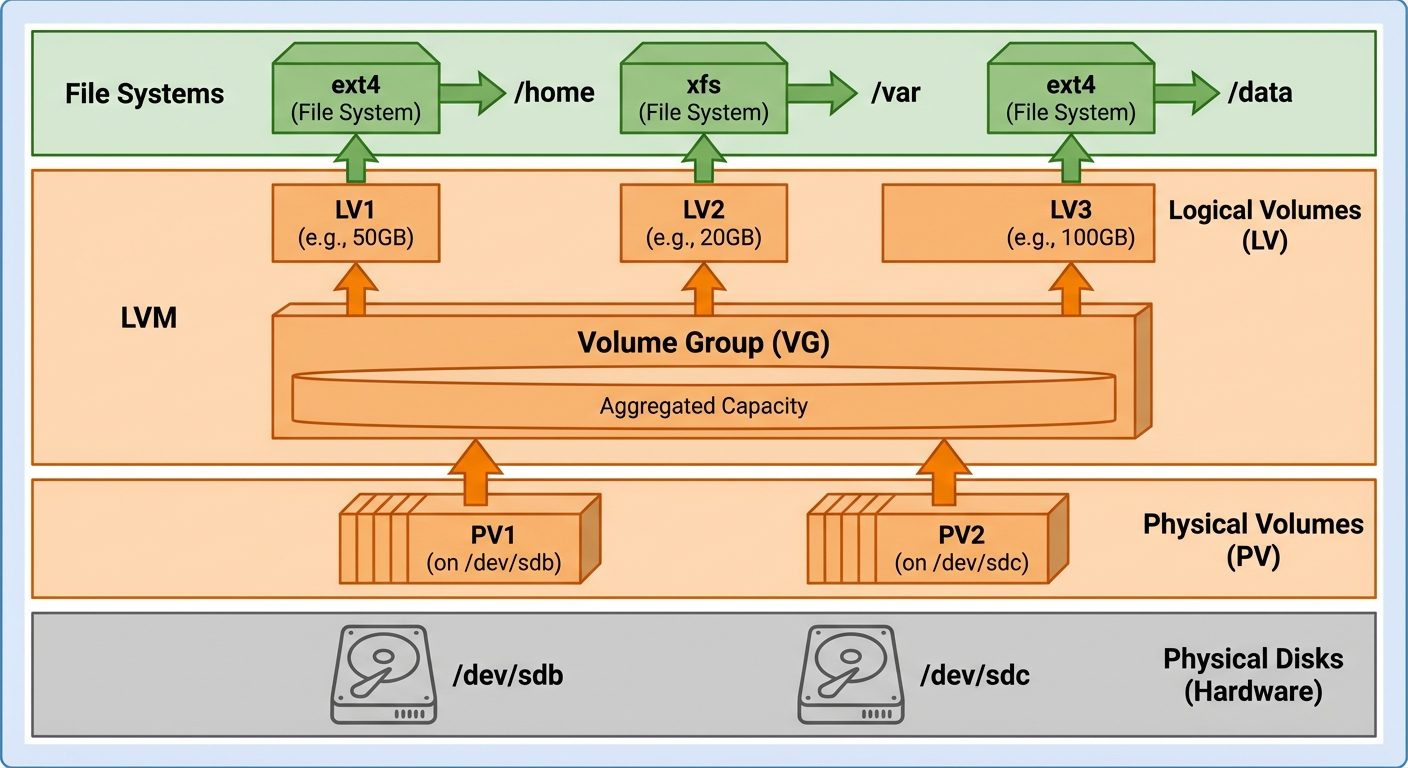
Logical Volume Management (LVM) allows for flexible resizing of storage spanning multiple physical disks.
LVM Architecture:
- Physical Volume (PV): The raw disk or partition (
pvcreate /dev/sdb). - Volume Group (VG): A pool of storage created by combining PVs (
vgcreate my_vg /dev/sdb). - Logical Volume (LV): Carved out of the VG; acts like a partition (
lvcreate -L 10G -n my_lv my_vg). - Filesystem: Placed on top of the LV (
mkfs.xfs /dev/my_vg/my_lv).
Benefits:
- Live resizing (grow filesystems while online).
- Snapshots (for backups).
- Spanning filesystems across multiple physical drives.
2.4 Troubleshoot Storage
1. Disk Space Issues
- Symptom: "No space left on device" error.
- Check:
df -h(Disk Free - human readable). Checks total capacity. - Investigate:
du -sh /var/*(Disk Usage). Checks which directory is consuming space.
2. Inode Exhaustion
- Symptom: Disk has free space (via
df -h), but system says "No space left" or cannot create files. - Cause: Too many small files used up all inodes (file index pointers).
- Check:
df -i. - Fix: Delete unnecessary small files or reformat with a higher inode count.
3. Filesystem Corruption
- Symptom: Read-only filesystem, I/O errors.
- Tool:
fsck(File System Consistency Check).- Warning: Unmount the filesystem before running
fsck. - Command:
umount /dev/sdb1followed byfsck -y /dev/sdb1.
- Warning: Unmount the filesystem before running
4. Mount Issues
- Symptom: Boot failure (Emergency Mode).
- Cause: Errors in
/etc/fstab(wrong UUID or syntax). - Fix: Boot into maintenance mode, remount root read-write (
mount -o remount,rw /), and edit/etc/fstab.
Did this save you a night before the exam?
LPU Notes is free, and it stays free. Ads cover part of the server bill. The rest comes out of a student's own pocket: the domain, the storage, and keeping the site up through the weeks everyone needs it at once.
The payment button didn't load. An ad blocker or a filtered network is the usual reason. to try again.
Nothing here is ever locked, and nothing unlocks. Chip in only if it was worth it. What it pays for →