Unit 2: Configuring Permissions and File Management
1. Configure Standard Linux Permissions
Linux uses a multi-user permission model based on file ownership and permission bits. Every file and directory is assigned an owner (User), a specific group (Group), and permissions for everyone else (Others).
The Permission Classes
- User (u): The owner of the file.
- Group (g): Users belonging to the specific group assigned to the file.
- Others (o): Any user who is not the owner and does not belong to the group.
The Permission Types
- Read (r):
- Files: Ability to view contents (
cat,less). - Directories: Ability to list contents (
ls).
- Files: Ability to view contents (
- Write (w):
- Files: Ability to modify contents.
- Directories: Ability to create or delete files within that directory.
- Execute (x):
- Files: Ability to run the file as a program or script.
- Directories: Ability to
cdinto the directory and access metadata of files inside.
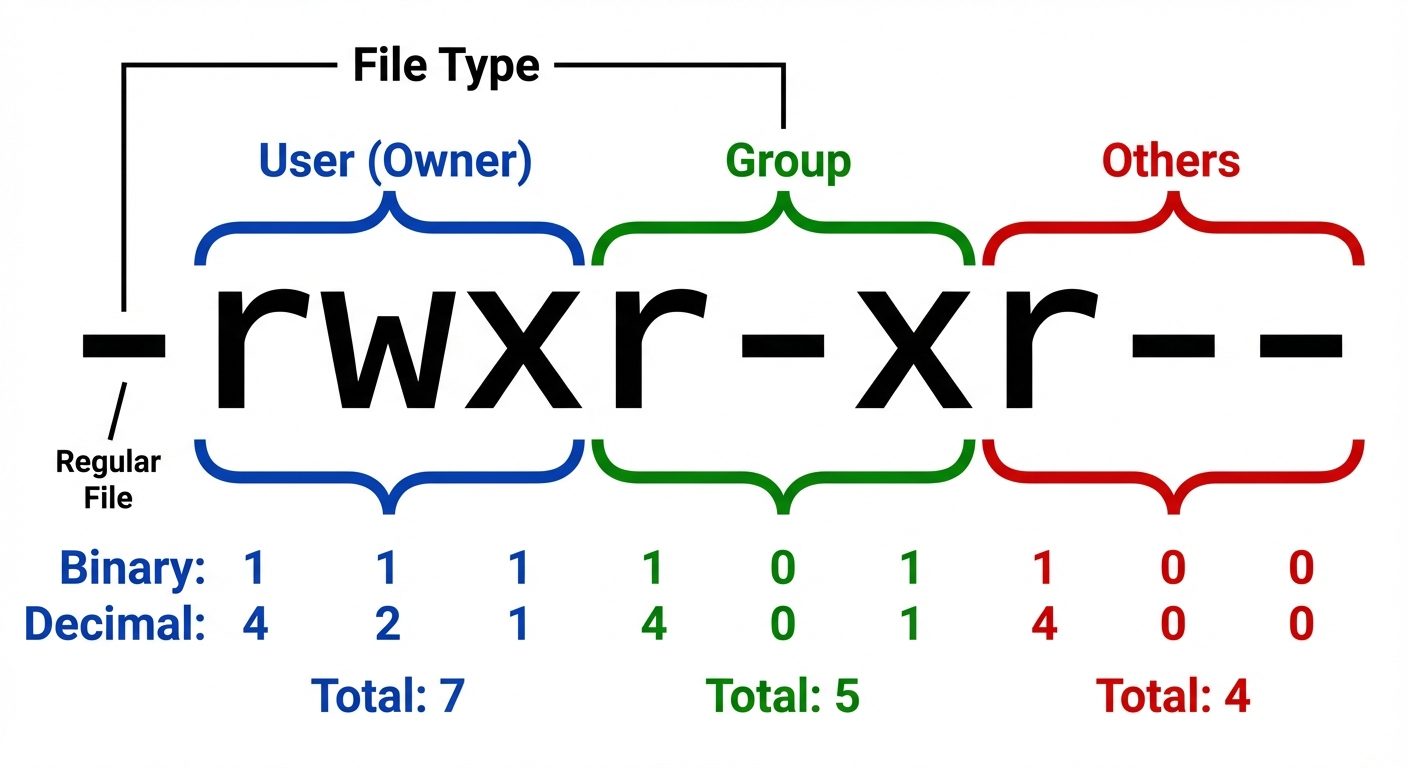
Notation Systems
1. Symbolic Notation
Uses letters (r, w, x, -) to represent permissions.
rwx: Read, Write, Execute.r--: Read only.rw-: Read and Write.
2. Octal (Numeric) Notation
Each permission is assigned a numeric value. To set permissions, sum the values for each class (User, Group, Others).
- Read (r) = 4
- Write (w) = 2
- Execute (x) = 1
- No permission (-) = 0
Example: chmod 755 filename
- User: 4+2+1 = 7 (rwx)
- Group: 4+0+1 = 5 (r-x)
- Others: 4+0+1 = 5 (r-x)
Management Commands
- chmod (Change Mode): Modifies permissions.
BASHchmod u+x script.sh # Add execute to user chmod 644 config.txt # rw-r--r-- chmod -R 755 /var/www # Recursive change - chown (Change Owner): Changes file ownership (usually requires root).
BASHchown alice file.txt # Change user chown alice:developers file.txt # Change user and group - chgrp (Change Group): Changes group ownership.
BASHchgrp developers project/
2. Configure Special Linux Permissions
Beyond standard permissions, Linux includes three special bits for specific security and functional use cases.
1. SUID (Set User ID)
- Function: When an executable file with SUID is run, it runs with the permissions of the file's owner, not the user who ran it.
- Representation: An
sin the user execute position (e.g.,-rwsr-xr-x). - Numeric: 4000.
- Common Use:
passwdcommand (needs root privilege to write to/etc/shadoweven when run by a standard user).
2. SGID (Set Group ID)
- On Files: Runs with the permissions of the file's group.
- On Directories: New files created inside the directory automatically inherit the directory's group ownership, rather than the creator's primary group. Essential for shared collaboration folders.
- Representation: An
sin the group execute position (e.g.,drwxrwsr-x). - Numeric: 2000.
3. Sticky Bit
- Function: Ensures that only the file owner, the directory owner, or root can delete or rename files within a directory.
- Representation: A
tin the others execute position (e.g.,drwxrwxrwt). - Numeric: 1000.
- Common Use:
/tmpdirectory (everyone can write, but you can't delete others' files).
3. Configure Access Control Lists (ACLs)
Standard permissions (UGO) are limited because you can only assign permissions to one specific owner and one specific group. ACLs allow for fine-grained control, enabling you to assign permissions to multiple users or groups on a single file.
Checking ACLs
Use getfacl to view current ACLs.
getfacl filenameSetting ACLs
Use setfacl to modify entries.
- Syntax:
setfacl -m [u/g]:[name]:[perms] filename
Examples:
# Give user 'bob' read/write access to a file owned by 'alice'
setfacl -m u:bob:rw report.txt

# Give group 'interns' read access
setfacl -m g:interns:r report.txt

# Remove specific ACL entry
setfacl -x u:bob report.txt

# Remove all ACLs
setfacl -b report.txt
4. Understand the Linux File System
The Linux file system follows the Filesystem Hierarchy Standard (FHS). It is a single inverted tree structure starting at the root (/).
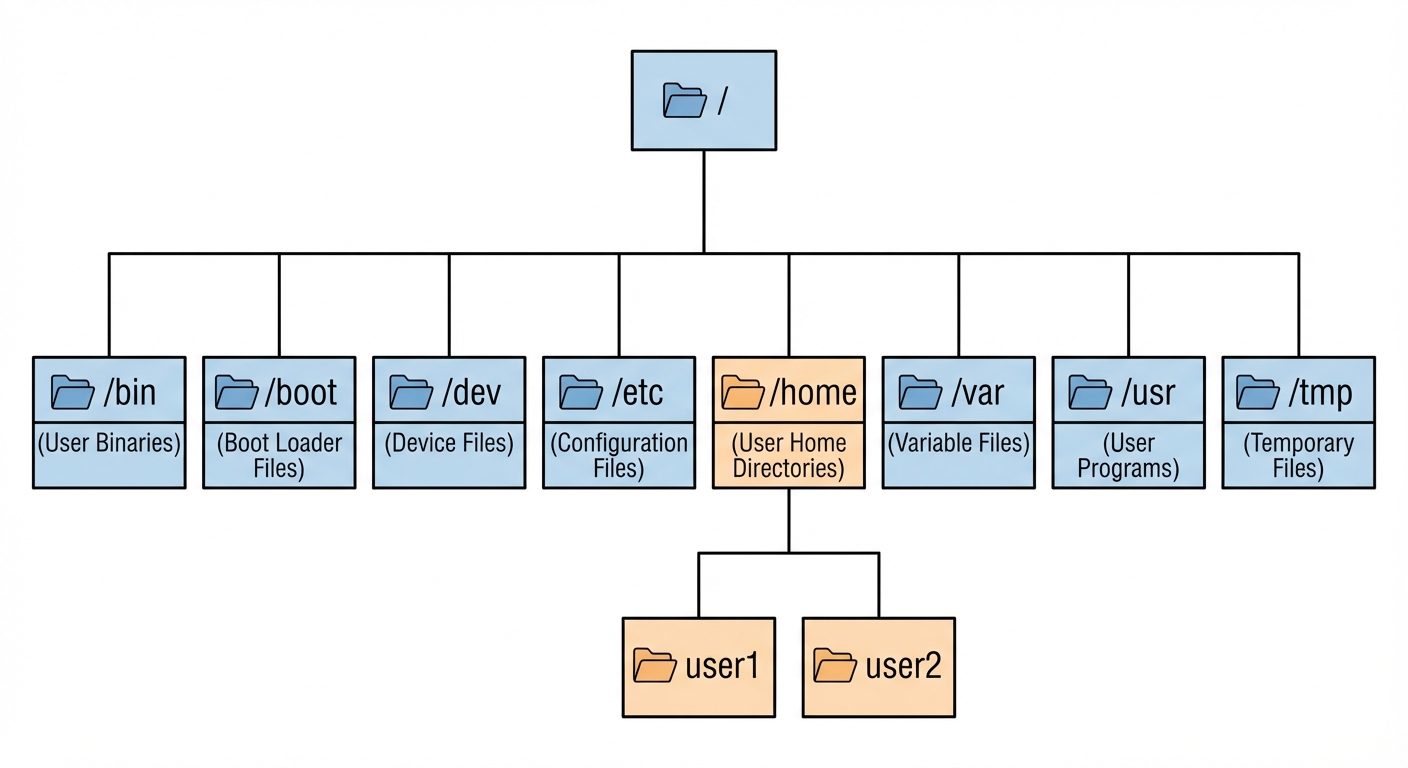
Key Directories
/: Root - The starting point of the filesystem./bin&/usr/bin: Essential user command binaries (ls, cp, cat)./sbin&/usr/sbin: System administration binaries (fdisk, reboot)./etc: System-wide configuration files (networking, users, services)./home: Personal directories for users./root: The home directory for the root user./var: Variable data (logs, spool files, mail)./tmp: Temporary files (cleared on reboot)./dev: Device nodes (representing hardware like diskssda, terminalstty)./proc: Virtual filesystem representing kernel and process state.
Inodes and Links
- Inode: A data structure that stores metadata about a file (permissions, owner, size, location blocks) but not the filename.
- Hard Link: A directory entry pointing to the same inode as the original file. Deleting the original does not delete the data until all hard links are removed. Cannot span partitions.
- Soft (Symbolic) Link: A file containing the path to another file (like a shortcut). If the original is deleted, the soft link becomes broken.
5. Use File Management Commands
Creating and Deleting
mkdir: Create directory (mkdir -p dir1/subdirfor nested).rmdir: Remove empty directory.touch: Create an empty file or update timestamps.rm: Remove files.rm -r: Recursive (delete directory and contents).rm -f: Force (no confirmation prompt).
Copying and Moving
cp [source] [dest]: Copy files.cp -r: Copy directories recursively.cp -a: Archive mode (preserves permissions/timestamps).
mv [source] [dest]: Move or Rename files.
Listing and Viewing
ls: List directory contents.ls -l: Long format (permissions, size, owner).ls -a: Show hidden files (starting with.).ls -h: Human-readable sizes (KB, MB).
cat: Concatenate and display entire file.less: View file one page at a time (scrollable).head: View the first 10 lines (head -n 5 file).tail: View the last 10 lines (tail -f filefollows log updates).
6. Find File Locations
The find Command
Searches the directory tree in real-time. Powerful but slower.
- Syntax:
find [path] [criteria] [action] - Examples:
BASHfind /home -name "*.txt" # Find text files in /home find /var -size +100M # Find files larger than 100MB find / -user bob # Find files owned by bob find /data -perm 777 # Find files with 777 permissions find . -name "*.log" -delete # Find and delete log files
The locate Command
Searches a pre-built database (mlocate.db). Very fast but may be outdated if the database hasn't updated.
updatedb: Updates the database (requires root).locate config.xml: Returns path immediately.
Binary Locations
which [command]: Shows the path of the executable that will run (e.g.,/usr/bin/python).whereis [command]: Shows the binary, source, and manual page paths.
7. Edit Text Files
The primary command-line text editor is Vi/Vim. It operates in distinct modes.
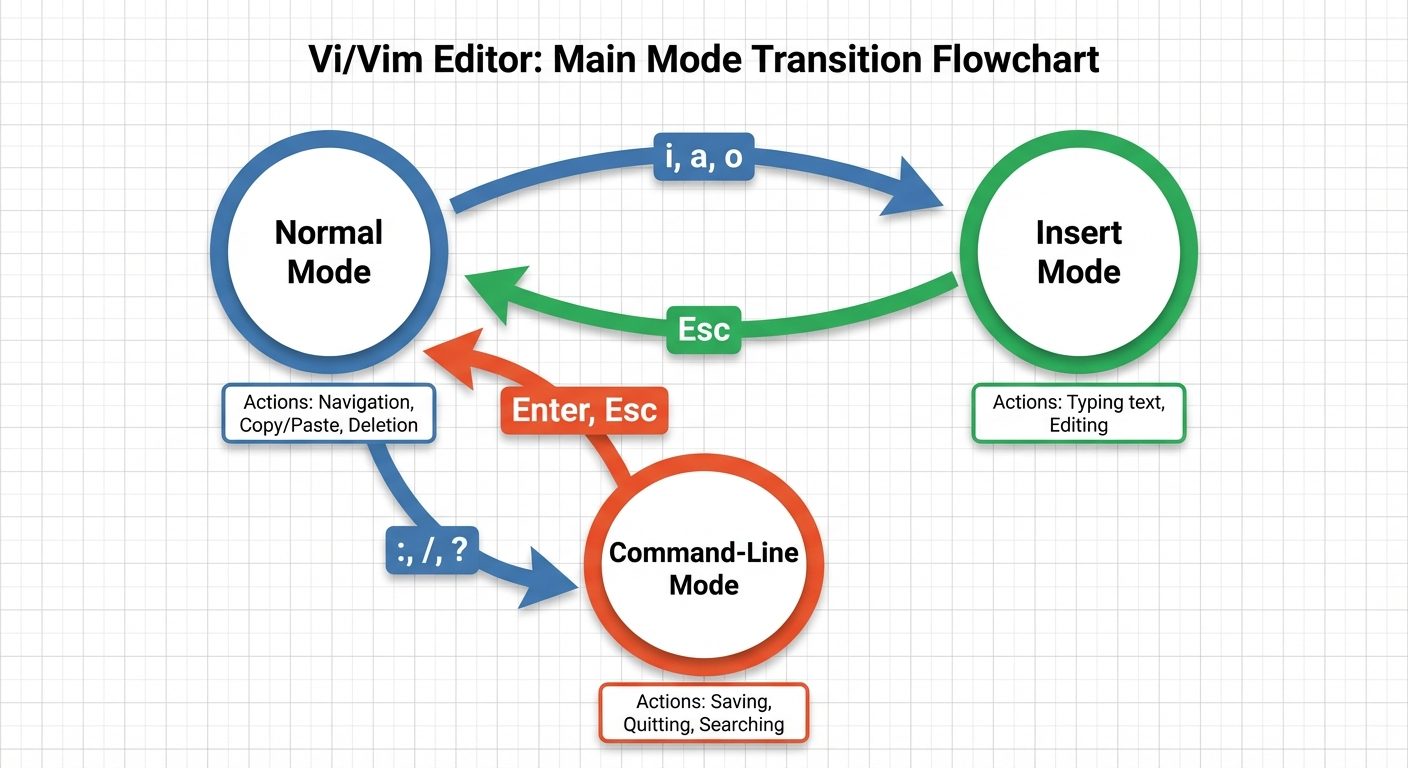
Vi/Vim Modes
- Normal Mode: Default mode for navigation and manipulation.
h, j, k, l: Move cursor (Left, Down, Up, Right).dd: Delete (cut) line.yy: Yank (copy) line.p: Paste.u: Undo.
- Insert Mode: For typing text.
i: Insert before cursor.a: Append after cursor.
- Command-Line Mode: For saving and exiting.
:w: Save.:q: Quit.:wqor:x: Save and Quit.:q!: Quit without saving.
Nano
A simpler, modeless editor easier for beginners.
- Commands appear at the bottom of the screen (e.g.,
^Omeans Ctrl+O to save).
8. Manage Text Files
System administration involves heavy text processing using streams, pipes, and filters.
Input/Output Redirection
>: Redirect standard output to a file (overwrite).ls > filelist.txt
>>: Redirect standard output to a file (append).echo "New Entry" >> log.txt
2>: Redirect standard error.<: Redirect standard input.
Piping (|)
Takes the output of the command on the left and uses it as the input for the command on the right.
ls -l | less(Scroll through a long directory list).
Text Processing Tools
- grep: Search for patterns within files.
BASHgrep "error" /var/log/syslog # Show lines containing "error" grep -r "config" /etc/ # Recursive search - cut: Extract sections from lines of files.
BASHcut -d: -f1 /etc/passwd # Extract usernames (field 1) using : as delimiter - wc: Word count.
BASHwc -l file.txt # Count lines - sort: Sort lines of text files.
- uniq: Report or omit repeated lines (usually requires sorted input).
BASHsort names.txt | uniq
Did this save you a night before the exam?
LPU Notes is free, and it stays free. Ads cover part of the server bill. The rest comes out of a student's own pocket: the domain, the storage, and keeping the site up through the weeks everyone needs it at once.
The payment button didn't load. An ad blocker or a filtered network is the usual reason. to try again.
Nothing here is ever locked, and nothing unlocks. Chip in only if it was worth it. What it pays for →