Unit 1: Introduction to Linux
1. Linux Characteristics
Linux is a Unix-like, open-source and community-developed operating system kernel. As a system administrator, understanding its core architecture is fundamental.
Core Characteristics
- Open Source: Released under the GNU General Public License (GPL). Source code is freely available for anyone to use, modify, and redistribute.
- Multi-user: Multiple users can access system resources simultaneously.
- Multi-tasking: The CPU can execute multiple independent processes concurrently.
- Portability: Linux supports a vast range of hardware architectures (x86, ARM, RISC, SPARC).
- Security: Implements robust permission, authentication, and authorization mechanisms.
- Hierarchical Filesystem: Everything is a file, organized in a tree structure starting from the root directory (
/).
System Architecture Layers
The Linux system is divided into two main spaces: User Space and Kernel Space.
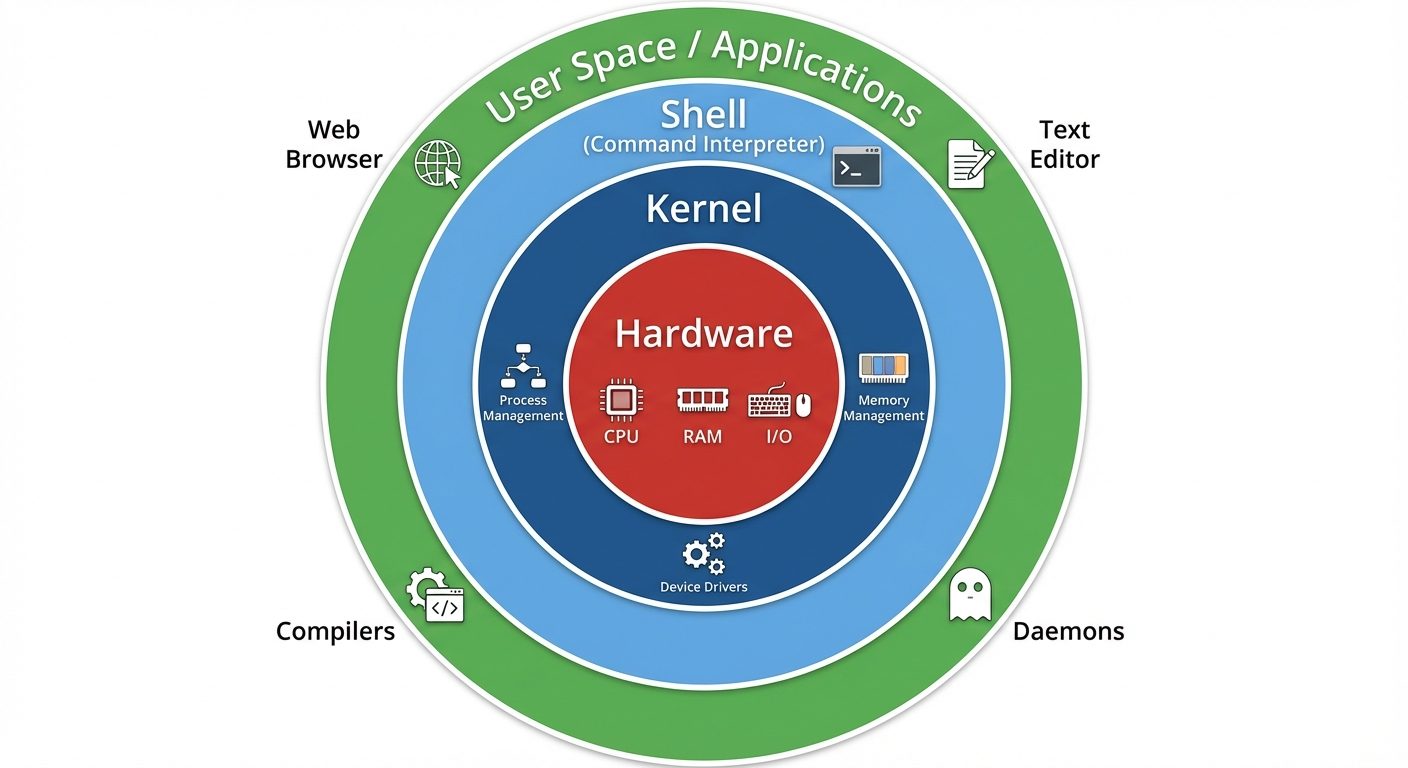
- Hardware: The physical machine.
- Kernel: The core of the OS. It manages CPU, memory, and devices. It acts as the bridge between applications and hardware.
- Shell: A command-line interface that interprets user commands and passes them to the kernel.
- Utilities/Applications: Programs that perform specific tasks for the user.
2. Bash Interaction with Linux
The Bash (Bourne Again SHell) is the default CLI for most Linux distributions. It allows administrators to interact directly with the kernel.
The Command Syntax
Commands generally follow this structure:
command [options] [arguments]- Command: The program to run (e.g.,
ls). - Options: Modify behavior, usually prefixed with
-or--(e.g.,-lfor long listing). - Arguments: The target of the command (e.g.,
/home/user).
Standard Streams and Redirection
Linux treats input and output as streams of data.
| Stream | Descriptor | Description |
|---|---|---|
| stdin | 0 | Standard Input (usually keyboard) |
| stdout | 1 | Standard Output (usually screen) |
| stderr | 2 | Standard Error (error messages) |
Redirection Operators:
>: Overwrite stdout to a file (ls > list.txt).>>: Append stdout to a file (echo "End" >> list.txt).2>: Redirect stderr (command 2> error.log).|(Pipe) : Send the output of command A as input to command B (cat file.txt | grep "search").
3. Use Help in Linux
An administrator must know how to find documentation without leaving the terminal.
Man Pages (man)
The system manual is divided into sections.
- Command:
man [section] [keyword] - Navigation: Spacebar (next page),
b(back),/search_term(search),q(quit).
Common Sections:
- User Commands
- File Formats (e.g.,
man 5 passwd) - System Administration Commands
Other Help Tools
--help: Most commands support this flag for a quick summary (e.g.,mkdir --help).info: Provides hyperlinked, detailed documentation (common in GNU tools).whatis: Displays one-line manual page descriptions.apropos: Searches manual page names and descriptions for a keyword (equivalent toman -k).
4. Administering Users and Groups
Linux uses configuration files to manage identity. It does not store passwords in plain text.
Critical Configuration Files
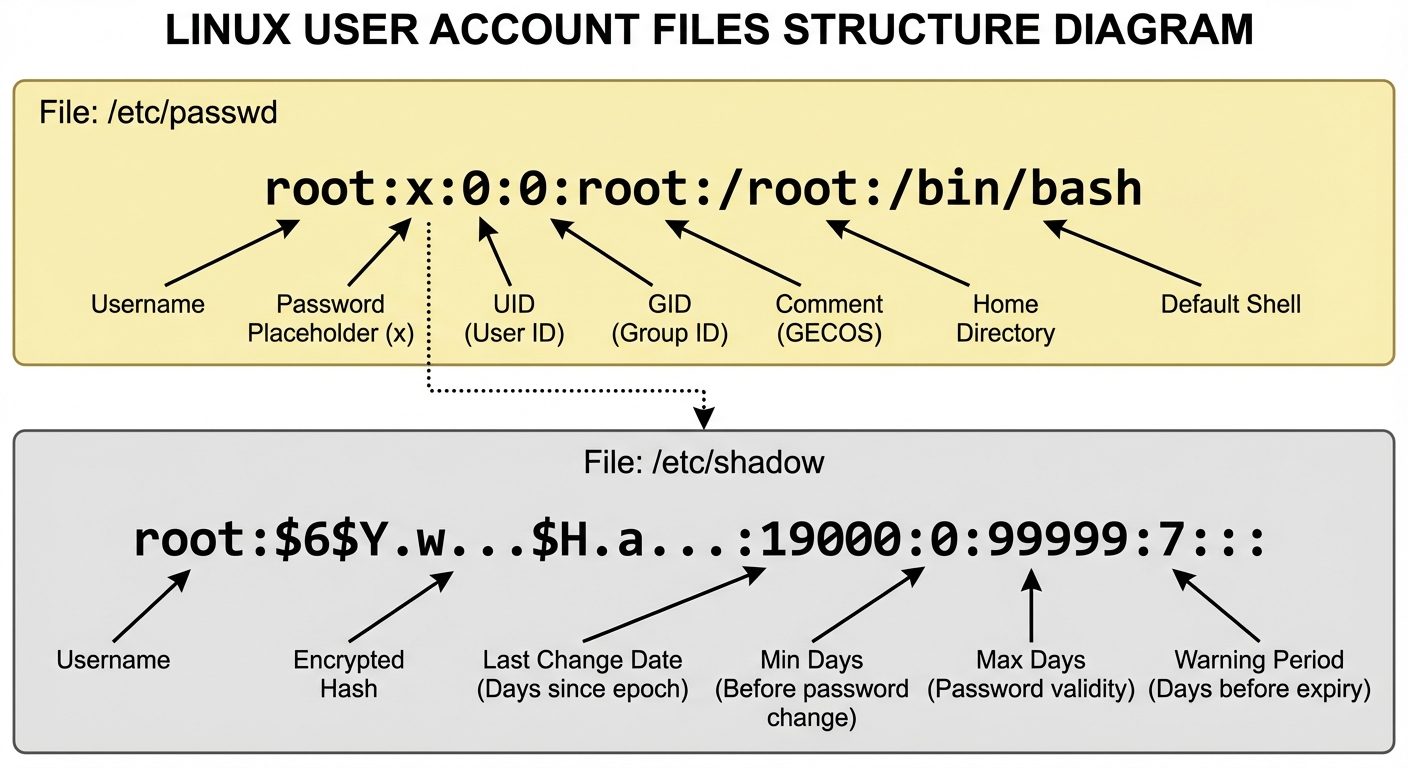
/etc/passwd: Contains user account information. Readable by all users.- Format:
username:x:UID:GID:comment:home_directory:login_shell
- Format:
/etc/shadow: Contains encrypted password and aging information. Readable only by root./etc/group: Contains group information.- Format:
group_name:x:GID:user_list
- Format:
User ID (UID) Types
- 0 (Root): The superuser with unlimited privileges.
- 1 - 999 (System Users): Reserved for system processes/daemons (e.g., apache, sshd). They usually have no login shell (
/sbin/nologin). - 1000+ (Regular Users): Human users.
5 & 6. Manage User and Group Accounts
User Management Commands
- Create User:
useradd [options] username-m: Create home directory.-s: Specify shell.-g: Primary group.-G: Secondary (supplementary) groups.
BASH# Example: Create user 'john', make home dir, assign to 'developers' group sudo useradd -m -G developers -s /bin/bash john
- Modify User:
usermodusermod -aG sudo john(Append user to sudo group).usermod -L john(Lock account).
- Delete User:
userdeluserdel -r john(Delete user and their home directory).
- Set Password:
passwd username
Group Management Commands
- Create Group:
groupadd groupname - Modify Group:
groupmod -n newname oldname - Delete Group:
groupdel groupname
7. Configure Privilege Escalation
Linux follows the principle of "Least Privilege." Administrators should not log in as root; they should escalate privileges only when necessary.
su (Switch User)
- Switches the current shell to another user context.
su -: Switches to root and loads root's environment variables (path, home, etc.). Requires the target user's password.
sudo (SuperUser DO)
- Allows a permitted user to execute a command as the superuser (or another user).
- Requires the current user's password.
- Provides an audit trail (logs commands in
/var/log/auth.logor/var/log/secure).
The Sudoers File
Managed via the visudo command (never edit directly with vim/nano to prevent syntax errors that lock out all admins).
- Location:
/etc/sudoers - Syntax:
TEXTusername hostname=(run_as_user) command_list root ALL=(ALL:ALL) ALL john ALL=(ALL) NOPASSWD: /usr/bin/apt
8. Troubleshoot User and Group Issues
Common Scenarios
- "Permission Denied":
- Check:
ls -lto view file permissions and ownership. - Fix: Use
chownto change owner orchmodto change permissions. Add user to the correct group.
- Check:
- User Cannot Login:
- Check: Is the account locked? Check
/etc/shadowfor a!prefix on the password hash. - Check: Is the shell valid? Ensure
/bin/bashexists and is permitted in/etc/shells. - Fix:
passwd -u username(unlock) orchage -E -1 username(remove expiration).
- Check: Is the account locked? Check
- "User is not in the sudoers file":
- Fix: Log in as root (or boot to recovery) and add the user to the
wheel(RHEL) orsudo(Debian) group.
- Fix: Log in as root (or boot to recovery) and add the user to the
9. Installing Linux
Partitioning
Before installation, the disk must be partitioned.
- MBR (Master Boot Record): Legacy, max 2TB drives, 4 primary partitions.
- GPT (GUID Partition Table): Modern (UEFI), supports ZB drives, 128 partitions.
Standard Partitions
/boot: Contains kernel and bootloader files (approx 1GB)./(root): The main OS files./home: User data (often separated to preserve data during OS re-installs).swap: Virtual memory used when RAM is full.
Filesystems
- ext4: Standard, stable, journaling filesystem.
- XFS: High performance, great for large files (default in RHEL).
- Btrfs: Advanced features like snapshotting.
10. The Linux Boot Process
Understanding the boot process is essential for troubleshooting startup failures.
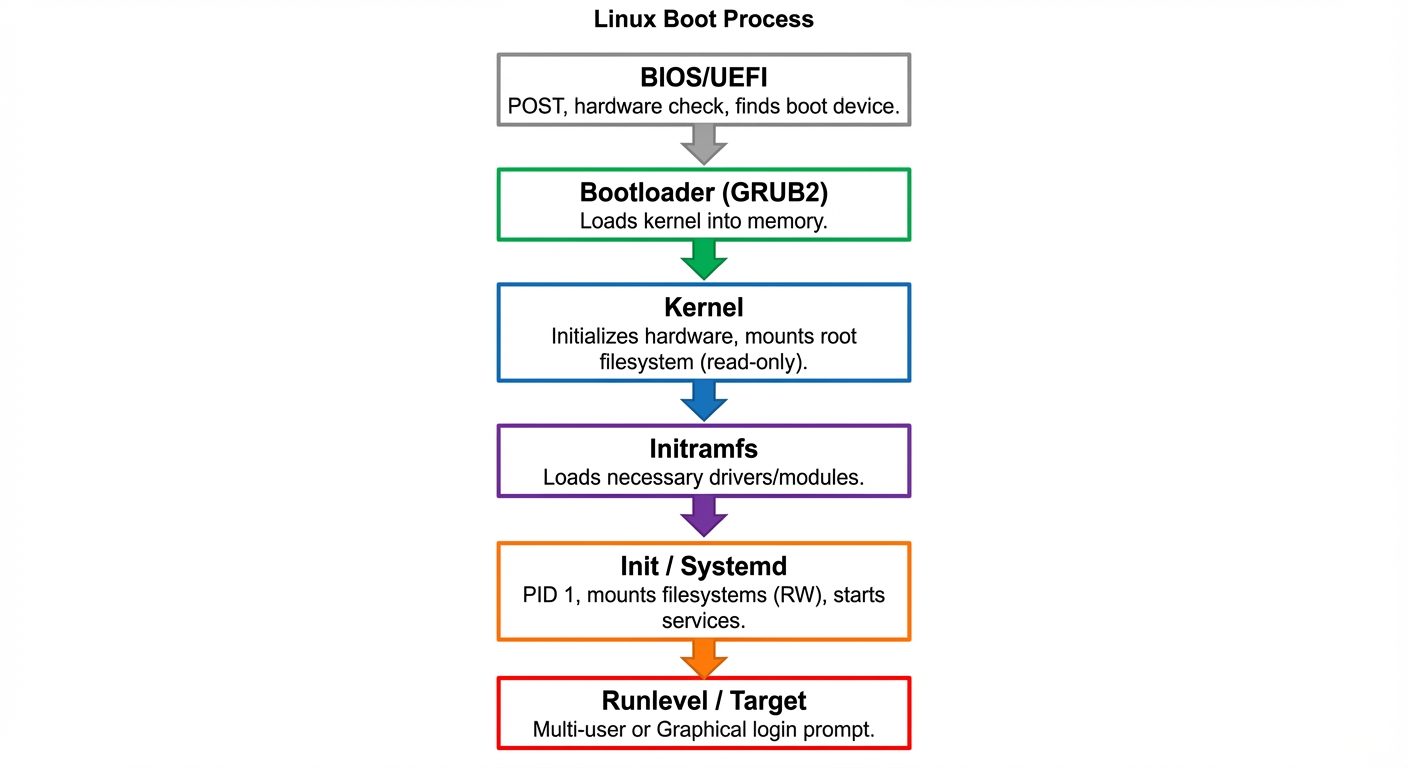
The 6 Stages
- BIOS/UEFI: Performs POST (Power On Self Test). Identifies the bootable device (HDD, USB, Network).
- MBR/GPT: The system reads the partition table to find the bootloader.
- Bootloader (GRUB2): The GRand Unified Bootloader presents the user with a menu to select the OS kernel.
- Kernel: The kernel loads into memory, detects hardware, and mounts the initial file system.
- Initramfs: A temporary file system loaded into memory that contains drivers needed to mount the real root file system.
- Init (Systemd): The first process started by the kernel (PID 1). It brings the system to a specific state (target) by starting services.
11. Modify Boot Settings
Managing GRUB2
The bootloader configuration is generated automatically. Do not edit /boot/grub2/grub.cfg manually.
- Edit settings in
/etc/default/grub(e.g., change timeout, kernel parameters). - Rebuild the configuration:
grub2-mkconfig -o /boot/grub2/grub.cfg
Systemd Targets (Runlevels)
Linux boots into a specific "Target".
- multi-user.target: Text mode, networking enabled (Server standard).
- graphical.target: GUI mode (Desktop standard).
- rescue.target: Single-user mode for maintenance.
Commands:
- Check default:
systemctl get-default - Change default:
systemctl set-default multi-user.target - Switch immediately:
systemctl isolate graphical.target
Resetting Root Password (Troubleshooting)
- Reboot and interrupt GRUB menu.
- Edit the kernel line (press
e). - Append
rd.breakorinit=/bin/bashto the end of the line starting withlinux. - Boot (Ctrl+x).
- Remount file system:
mount -o remount,rw / - Change password:
passwd root - Relabel SELinux (if applicable):
touch /.autorelabel - Reboot.
Did this save you a night before the exam?
LPU Notes is free, and it stays free. Ads cover part of the server bill. The rest comes out of a student's own pocket: the domain, the storage, and keeping the site up through the weeks everyone needs it at once.
The payment button didn't load. An ad blocker or a filtered network is the usual reason. to try again.
Nothing here is ever locked, and nothing unlocks. Chip in only if it was worth it. What it pays for →