Unit 1: Linux Ecosystem & Infrastructure
1. Linux Distributions & Families
The Linux operating system is composed of the Linux Kernel (the core interface between hardware and software) and a collection of software packages/tools (GNU tools). Because the kernel is open-source, various organizations bundle the kernel with different software managers, desktop environments, and configurations. These bundles are called Distributions (Distros).
Core Architecture
- The Kernel: Manages CPU, memory, and devices.
- The Shell: The command-line interface (CLI) for user interaction.
- The Desktop Environment (DE): The GUI (GNOME, KDE Plasma, XFCE).
- Package Manager: Software handling installation and updates.
Major Distribution Families
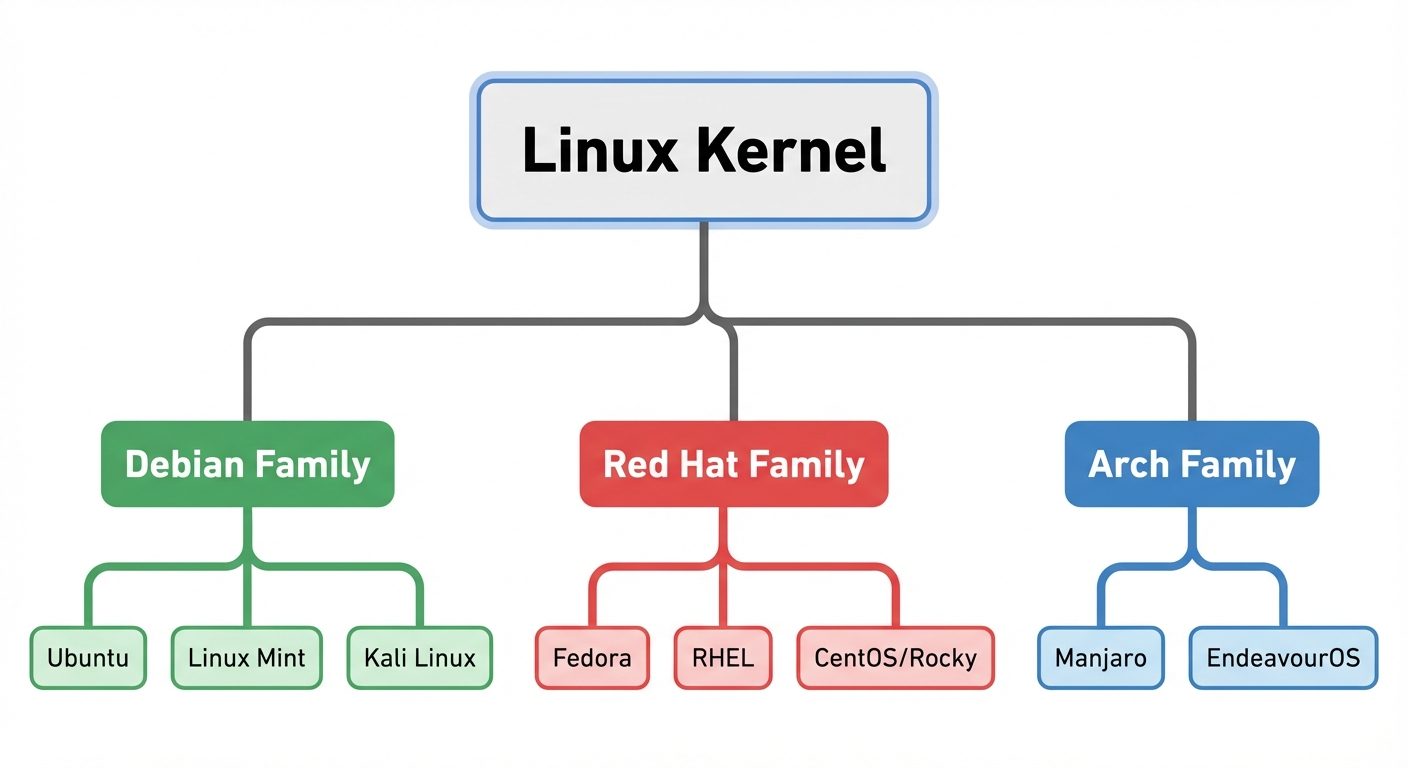
Linux distributions are generally categorized by their lineage and the package management system they use.
-
Debian Family:
- Base: Debian (Stability focused).
- Package Format:
.deb - Package Manager:
apt,dpkg - Notable Distros:
- Ubuntu: Most popular, user-friendly, vast community support.
- Linux Mint: Windows-like interface, great for beginners.
- Kali Linux: Specialized for cybersecurity and penetration testing.
-
Red Hat (RPM) Family:
- Base: Red Hat Enterprise Linux (RHEL) (Enterprise/Server focused).
- Package Format:
.rpm - Package Manager:
dnf(formerlyyum),rpm. - Notable Distros:
- Fedora: Upstream for RHEL, features the latest technologies.
- CentOS Stream / Rocky Linux: Free enterprise-grade alternatives to RHEL.
-
Arch Linux Family:
- Philosophy: KISS (Keep It Simple, Stupid), Rolling Release model.
- Package Manager:
pacman - Notable Distros:
- Arch Linux: Do-it-yourself installation.
- Manjaro: User-friendly Arch derivative.
2. Command Line Fundamentals
The Command Line Interface (CLI) allows direct interaction with the OS via the Shell (usually Bash or Zsh).
Directory Structure (FHS - Filesystem Hierarchy Standard)
/: Root directory./home: User personal data./etc: Configuration files./bin&/usr/bin: User binaries (commands)./var: Variable data (logs, websites).
Essential Commands
Navigation
pwd: Print Working Directory. Shows where you are.ls: List directory contents.ls -l: Long listing (shows permissions).ls -a: Show hidden files.
cd [path]: Change Directory.cd ..: Move up one level.cd ~: Move to home directory.
File Manipulation
mkdir [name]: Make a new directory.touch [file]: Create an empty file or update timestamps.cp [source] [dest]: Copy files.cp -r: Copy recursively (for directories).
mv [source] [dest]: Move or Rename files.rm [file]: Remove/Delete files.rm -rf: Force remove directory recursively (Use with caution).
File Viewing
cat [file]: Concatenate and display file content.less [file]: View file one page at a time.head [file]: View first 10 lines.tail [file]: View last 10 lines.
I/O Redirection and Piping
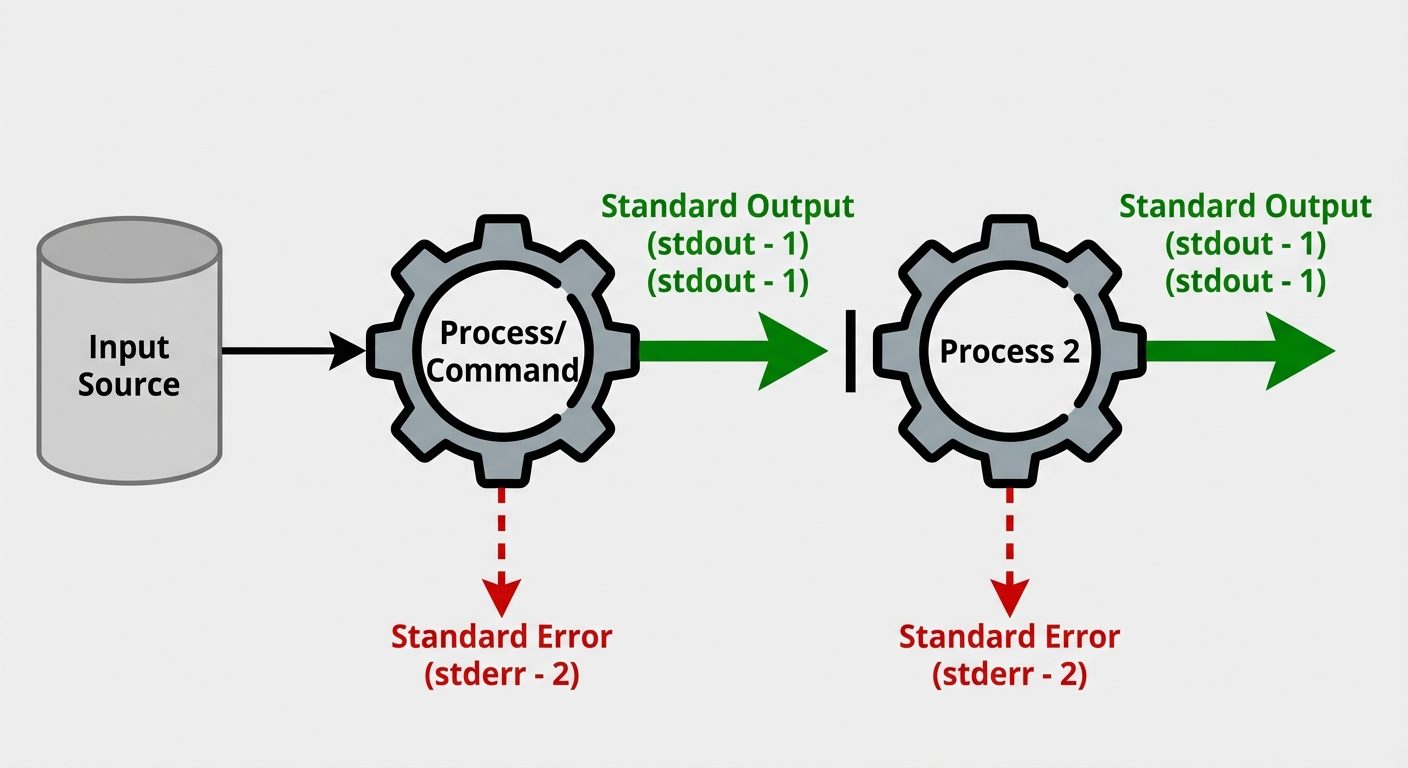
Linux treats input and output as streams.
- stdin (0): Standard Input (Keyboard).
- stdout (1): Standard Output (Screen).
- stderr (2): Standard Error (Screen, error messages).
- Redirection (
>,>>): Sends output to a file instead of the screen.
BASHls > filelist.txt # Overwrites file with output ls >> filelist.txt # Appends output to file - Piping (
|): Takes the output of Command A and uses it as input for Command B.
BASHcat largefile.txt | grep "search_term" | less
3. User & Group Management
Linux is a multi-user system. Access is controlled via User IDs (UID) and Group IDs (GID).
User Configuration Files
/etc/passwd: Stores user account information (public)./etc/shadow: Stores encrypted passwords (secure)./etc/group: Stores group information.
User Management Commands (Root privileges required)
- Creating Users:
BASHsudo useradd -m -s /bin/bash username # -m: Create home directory # -s: Set default shell - Setting Password:
BASHsudo passwd username - Modifying Users:
BASHsudo usermod -aG groupname username # -aG: Append to secondary group (e.g., sudo group) - Deleting Users:
BASHsudo userdel -r username # -r: Remove home directory
File Permissions & Ownership
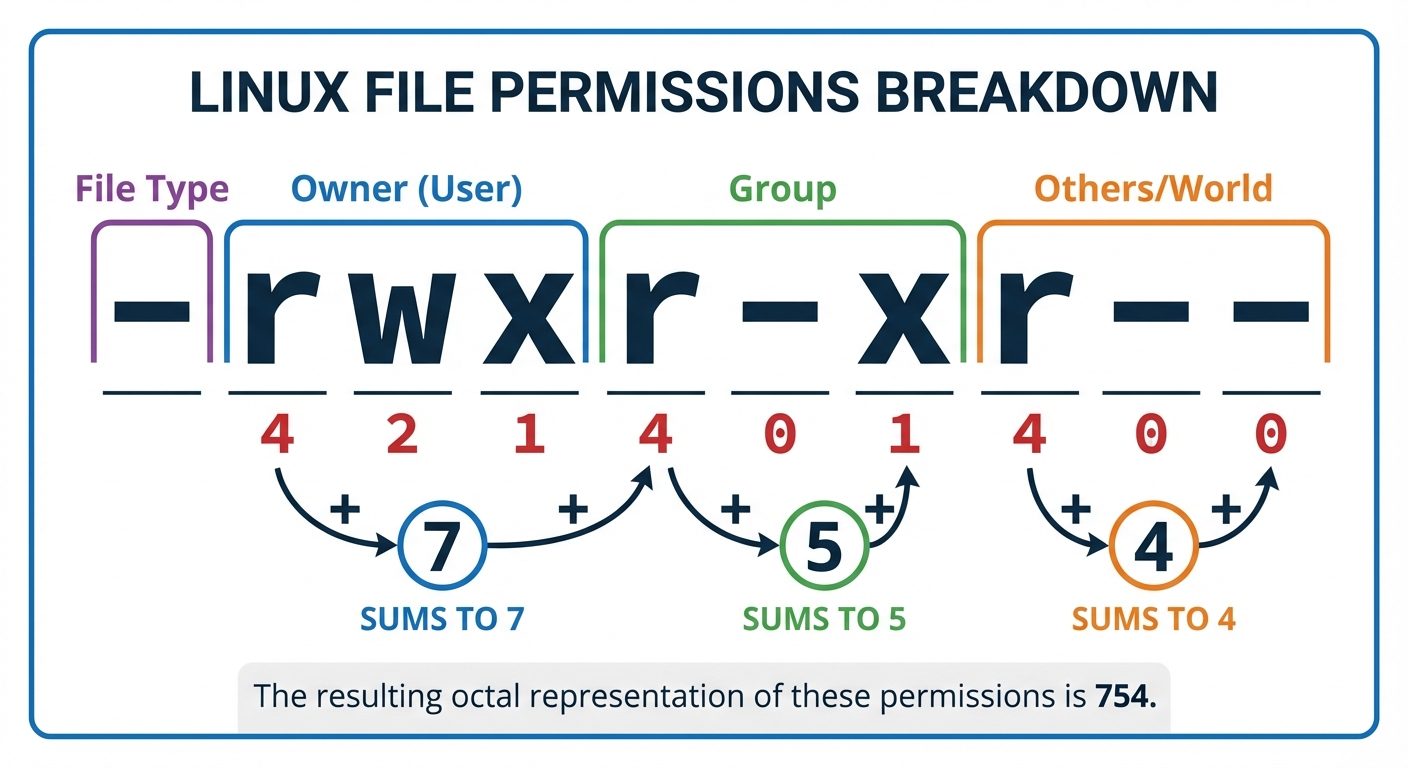
Every file has three sets of permissions: User (Owner), Group, and Others.
Permission Types
- Read (r): View file contents / List directory contents. (Octal: 4)
- Write (w): Modify file / Create or delete files in directory. (Octal: 2)
- Execute (x): Run file as script / Enter directory. (Octal: 1)
Changing Permissions (chmod)
Can be done symbolically or numerically (Octal).
- Symbolic:
chmod u+x file(Add execute to User). - Numeric:
chmod 755 file(rwx for User, r-x for Group, r-x for Others).
Changing Ownership (chown)
chown user:group file
4. Package Management
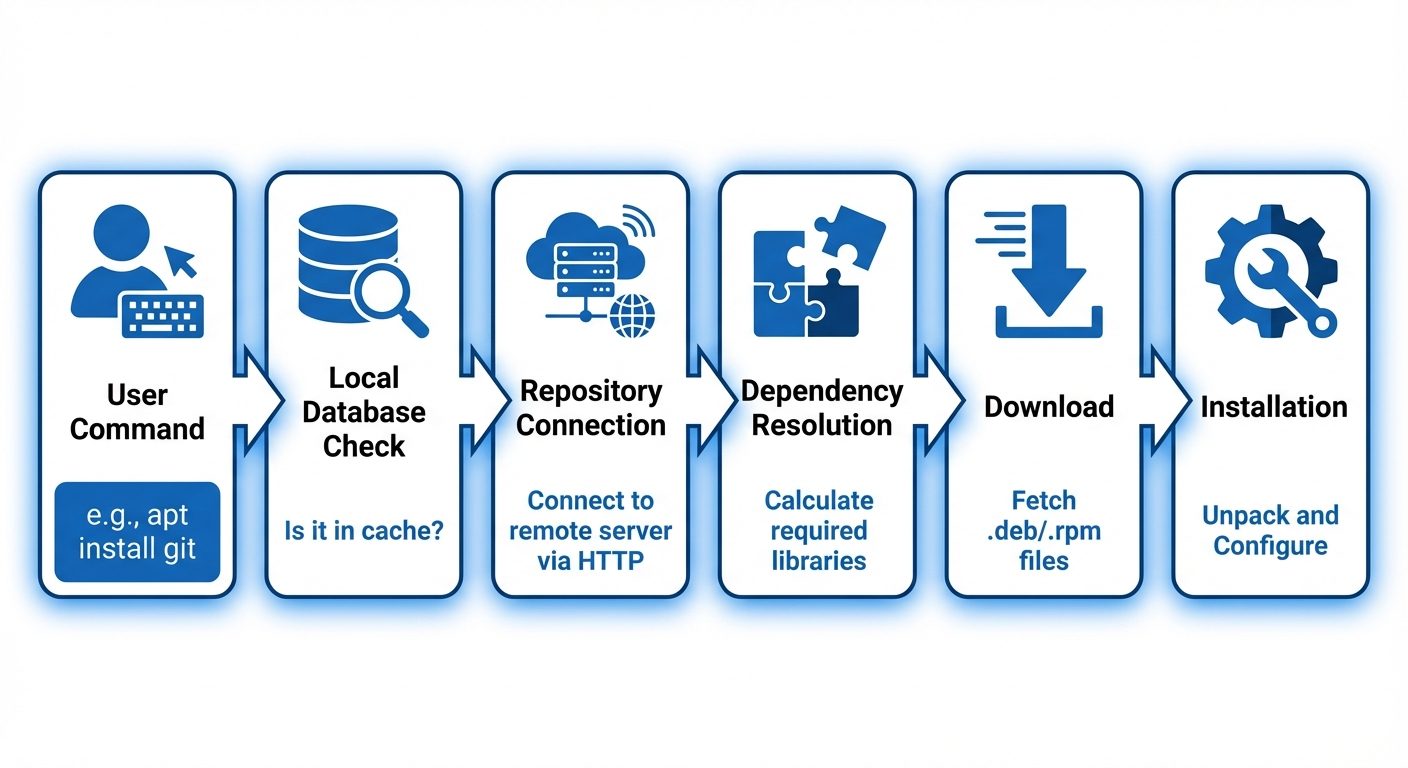
Package managers automate the process of installing, upgrading, configuring, and removing computer programs. They resolve dependencies (libraries required for software to run).
Debian/Ubuntu (apt)
Advanced Package Tool. Uses .deb files.
- Update Repositories:
sudo apt update(Refreshes list of available packages). - Upgrade System:
sudo apt upgrade(Installs newer versions). - Install Package:
sudo apt install [package_name] - Remove Package:
sudo apt remove [package_name] - Search:
apt search [keyword]
Red Hat/CentOS (dnf / yum)
Dandified YUM. Uses .rpm files.
- Update/Upgrade:
sudo dnf update - Install:
sudo dnf install [package_name] - Remove:
sudo dnf remove [package_name]
Low-Level Tools
These tools install specific package files but do not resolve dependencies automatically.
- Debian:
dpkg -i package.deb - Red Hat:
rpm -ivh package.rpm
Universal Package Managers
These work across different distributions by bundling dependencies within the application.
- Snap: Canonical's system (Ubuntu).
sudo snap install vlc
- Flatpak: Community-driven, focused on sandboxing.
flatpak install flathub org.gimp.GIMP
Did this save you a night before the exam?
LPU Notes is free, and it stays free. Ads cover part of the server bill. The rest comes out of a student's own pocket: the domain, the storage, and keeping the site up through the weeks everyone needs it at once.
The payment button didn't load. An ad blocker or a filtered network is the usual reason. to try again.
Nothing here is ever locked, and nothing unlocks. Chip in only if it was worth it. What it pays for →